|
|
RSS 1.0 RSS 2.0 |
June 08, 2009
Free ILTA White Paper: Best Practices for the Legal Hold Process
I'm honored that ILTA asked me to contribute a white paper on best practices for legal holds. It's a topic near and dear to my heart, as I advise companies seeking to implement more effective hold policies and procedures. The legal hold process is a critical stage in eDiscovery. Implementing and executing a well-designed legal hold process can significantly reduce the risks and costs associated with eDiscovery and other compliance requirements.
Crafting, adopting and implementing legal hold best practices often raises the following questions:
- When is our legal obligation to preserve information triggered?
- Where is all of our data relating to this matter?
- How should we notify people of the need to preserve their information?
- Who needs to be notified?
- How much or how little information do we need to preserve?
- How can we best preserve and collect the data to meet our legal obligation?
- When should we rely upon custodian self-selection of data to preserve, and when is it more appropriate to follow a different procedure?
- When can we dispose of the information preserved subject to the legal hold?
You can download a PDF reprint here at LTG, which answers these increasingly important questions along with examples from recent key eDiscovery case decisions.
I also recommend downloading and reading the full white paper collection, made possible by the combined efforts of ILTA's Litigation Support, Records Management and Law Department Peer Groups. There are a number of great contributions on the subject which many should find quite helpful:
Litigation Support: Document Forensics and Legal Holds
Articles included in this white paper:
- Overcoming Data Encryption for Forensic Imaging and Collections
- When is Full-Blown Forensic Collection Necessary?
- When "Deleted" Doesn't Mean "Gone"
- Disaster Recovery or Discovery Disaster?
- Legal Hold and Subpoena Compliance Coordination
- Best Practices for Legal Hold Processes
- The Effects of Litigation Holds on the Corporate Lawyer
I frequently hear that what keeps GC's and AGC's awake at night is their legal hold preservation and collection process, or lack thereof along with the fear of sanctions for spoliation and other discovery violations. If your organization has issues with its legal hold and other discovery processes or you'd like to know how you can improve their repeatability and defensibility while reducing cost and risk, please contact me via either the e-mail link on this blog or the e-mail address in the white paper. I'd be happy to discuss.
March 21, 2009
Think Before You In-source
My latest InsideCounsel article, "Think Before You In-source" is now available online. While there has certainly been a trend to bring eDiscovery in-house, lately I've been hearing from a number of corporate legal and enterprise IT professionals regarding their frustration in this area. I'm not alone, having heard the same from colleagues at LegalTech NY and elsewhere.
As I shared in the article,
I have recently heard from a number of companies who have been dissatisfied that what they've brought in-house from software providers hasn't lived up to the hype, delivered the best results or integrated with all the necessary data systems to address their needs. Some of those acquisitions are even being shelved or curtailed prematurely, well before realizing their return on investment.
Thus I offer seven key factors and issues to consider before deciding to bring various e-discovery services and technology in-house. In addition, often a number of difficulties can be addressed through better process design, since technology isn't a broad spectrum panacea. It's a tool to support and automate those processes, not the other way around, and it's important to keep things in the proper perspective:
Keep in mind, this discussion isn't advocating that various aspects of e-Discovery shouldn't be brought in-house. Obviously, many companies are doing just that with the goal to reduce costs, improve consistency and gain better control over their processes to improve compliance. Thus a better statement is that the decision on whether to bring eDiscovery tasks in-house shouldn't be made lightly or because you heard another company in your industry has done so. It needs to make sense and fit well with your particular company's abilities, goals, resources, culture, business processes, risk management, and more.
Like most things worth doing, it's important to consider a number of critical factors and issues before jumping on the bandwagon and throwing technology at the problems, some of which aren't even technological issues. The more you have done your homework, including having a good handle on the particular issues, gaps, costs, risks, and processes needing to be addressed, the better off you'll likely be when the smoke clears.
In addition, it's important that companies don't just explore the obvious if they want to make meaningful improvements and cost reductions. There are a number of concurrent or alternate cost-saving measures than can offer significant benefits, which should also be explored or they may be otherwise overlooked in all the hype.
August 16, 2008
eDiscovery 2.0: Early Case Assessments Reduce Risks and Costs
If expensive “brute force” reviews of large volumes of electronic documents can be called eDiscovery 1.0, then Early Case Assessments are very much part of a more refined eDiscovery 2.0 approach. The benefits from performing an ECA include learning key information earlier in the matter, improved identification of relevant documents and e-mails (and their custodians), and reducing costs by sampling data prior to an extensive document review. Using a combination of tools and savvy approaches, companies can greatly reduce their risk and review costs (which is often a staggering 80+% of a matter's total discovery cost).
I just published an extensive discussion of ECA's at InsideCounsel's Inside Tech column, including useful data analytics, social networking analysis of e-mails and IMs, and concept search. Those of you interested in Judge Grimm's take on the limitations and problems inherent with keyword searches in the recent Victor Stanley, Inc. v. Creative Pipe, Inc. decision (involving the loss of privilege) will appreciate a discussion of his observations in context of an effective Early Case Assessment.
February 22, 2008
Breaking through the ESI Inaccessibility Wall - Feature Guide
My latest article, "Breaking through the Inaccessibility Wall -- A New Angle", is published in the current February/April 2008 issue of Litigation Support Today magazine. You can download the PDF reprint here.
Corporate counsel struggling with records retention should be among the first to read this, as their regular business information can be used against them in unforeseen ways. Indeed, my alternate title for this practical guide is "Call the Help Desk, Your Accessibility is Showing". From discussions with various corporate and outside counsel, a common misconception under the new rules is that backup tapes are an inaccessible “safe harbor” media as long as one asserts they are only used for disaster recovery. Depending on the specific facts, this could prove to be a costly assumption as newer decisions consider the totality of the burden and cost under Rule 26(b).
As a result, I suggest a novel but very practical approach to challenge or confirm an opposing party's assertions using business intelligence methods and their own data. In accessibility matters, courts are increasingly demanding objective data on which to base their discovery rulings rather than relying upon subjective arguments and affidavits claiming excessive time and expense are required. It’s also contemplated in the Committee Notes regarding sampling and other techniques.
As an example, corporate help desk logs can be used to quantify the frequency and purposes for which backup media are being accessed. However, other seemingly mundane systems and data may be useful and relevant. This further illustrates why companies continue to need savvy e-discovery professionals to bridge the legal/IT gap and identify opportunities and weaknesses others have missed. I also provided an update on how the backup technology landscape is changing and what you should know about it when dealing with ESI accessibility issues.
Posted by Jeff Beard | Permalink
February 15, 2008
2008 Corporate Legal Technology Trends @ InsideCounsel
From insourcing the e-discovery process to automated document review, the world of legal technology is rapidly changing. If you missed LegalTech New York or just want to keep up on the current trends, my latest InsideTech column at InsideCounsel will bring you up to speed.
Among other hot topics, LegalTech was brimming with discussion on the Qualcomm fallout, records retention, proactive approaches, and automated review. In addition, I covered key issues such as cost reduction, the effects of globalization, data privacy, and outsourcing/insourcing. With recessionary concerns on the rise, corporate law departments are being asked to do more with less, and these issues will continue to compound through 2008 and into 2009.
Posted by Jeff Beard | Permalink
July 24, 2007
Windows Vista Security: Pros and Cons, Third Party Solutions Still Needed
Vista has a number of new security features, such as a two-way firewall, Windows Defender, UAC (User Account Control), BitLocker Drive Encryption, and more. These are certainly improvements over XP in terms of baking more security into Windows. My thoughts and experiences with them so far, along with recommendations for third-party security apps where needed:
Vista Firewall:
While Vista indeed comes with a two-way firewall, it's a mixed bag. While it blocks incoming requests (Windows XP does this too), it appears there's no easy way to configure Vista's firewall to block unauthorized outgoing communications (for example, spyware phoning home from your PC). A user would need to add blocking for each type of malware out there today, which as we know, numbers in the thousands. Not good, so I embarked on researching several of the Internet security suite products for easier and more robust protection, and posted my results below.
Windows Defender:
Windows Defender is basically the next generation of Microsoft's Windows AntiSpyware. For users that don't have any anti-spyware protection installed, this is certainly a step in the right direction. However, it's not an antivirus program. For that, you'd need to subscribe and pay for the Windows Live OneCare service, listing for $49.95/year on Microsoft's web site. The site lists OneCare's features as Antivirus, Antispyware, Anti-phishing, Firewall, Performance tune-ups, and Backup and Restore. It's interesting to note a number of these are already bundled in Vista, at least to some extent. Again, while I applaud Microsoft for offering additional security, they don't have a great track record in the security business, and for that price I found several Internet security suites that were more mature and robust for roughly the same price. Also, I still like having Spybot Search and Destroy installed to catch anything the other solutions missed, and vice versa.
UAC (User Account Control):
First off, if you haven't heard of or seen Vista's UAC prompts, you absolutely must view this hilarious Apple TV commercial. For certain types of actions, Windows will prompt you to confirm whether you want them to run or not. It's annoying and productivity-sapping as you're basically issuing commands twice. The idea behind it is to prevent malware from doing something unauthorized on your PC. As the commercial mentions, you could turn it off, but then it wouldn't provide any alerts or protection. I've read that Microsoft is looking to make it less intrusive and annoying in the future. One could only hope.
New User Account Types:
Vista helps address one of the support problems with Windows XP -- standard user vs. administrative rights. Under XP, it was common to have to log into Windows as a system administrator to install programs, make system changes, troubleshoot, etc. With Vista, standard user accounts can be temporarily escalated to administrator privileges simply by typing in an administrator password when prompted. Granted, I seriously doubt that corporate enterprises will allow their users such privileges, but for home use, it's a great feature that eliminates a lot of user swapping and logins back and forth. It also allows me to work as a standard user with limited privileges for better security, while providing me temporary superpowers when needed.
BitLocker Drive Encryption:
Wouldn't it be nice to know that if someone stole my laptop, they couldn't get access to my confidential e-mails, documents, financial information, and more? Hard drive encryption was one of the reasons I wanted to purchase Vista Ultimate, as it's only available in Vista Enterprise and Ultimate editions (so don't expect it in any Home version nor the smaller business editions). With the staggering number of laptop thefts and inadvertent disclosures of confidential data and corporate data privacy debacles, this is a welcome addition to Windows. Just for "fun", take a look at the very long Privacy Rights Clearinghouse list of data breaches since 2005. In your browser, press CTRL-F and type "laptop" to find each occurrence involving a laptop computer breach. Scary, isn't it?
Sure, there are plenty of third party drive encryption products available, but it's nice to see one incorporated into the OS itself. I haven't tried it yet, and there is some drive preparation required. As I understand it, BitLocker needs to create two hard drive volumes. One is unencrypted for all of Vista's system files for better performance. The other is encrypted and contains all of the non-system files (including your data). FYI, Vista Ultimate users can download a free "Extra" via Windows Update that streamlines this preparation process and makes it more user-friendly. As I prefer to use Norton Ghost to backup Windows installations, I haven't enabled BitLocker until I know that Ghost can handle backing up and restoring these encrypted volumes. Symantec just released Ghost 12.0 for Vista compatibility, so I'll be checking up on its ability to handle BitLockered drives.
Data Execution Prevention (DEP):
Vista continues to support DEP as did WinXP SP2. Per Microsoft, Data Execution Prevention (DEP) is a set of hardware and software technologies that perform additional checks on memory to help prevent malicious code from running on a system. In plain English, it prevents programs from running from memory marked for storing data, not programs. This is one way the system can stop malicious software exploits.
On my Toshiba laptop, I used SecurAble from Steve Gibson (of ShieldsUp! fame) to determine whether my new Core 2 Duo processor had hardware DEP capability and whether it was enabled. Sure enough, it had DEP, but Toshiba shipped the laptop with DEP disabled in the BIOS. After I enabled it, I have encountered a few instances where Windows closed Internet Explorer and other apps under DEP protection. As I have a clean system, I'm chalking these up to software bugs. As an educated guess, this is probably why Toshiba chose to leave it disabled -- less problems for users out of the box (but perhaps leaving them open for more problems down the road without hardware DEP protection). Most processors made in the past year or two support hardware DEP, which is preferable to the software-based DEP protection Vista will use if it doesn't detect it in the processor.
Why is DEP so important? I'll let Steve Gibson answer that by quoting from his site:
"Why would data or communications buffers ever contain executable code? . . . because so-called "Buffer Overrun" attacks are the predominant way Internet-connected computers have historically been remotely hacked and compromised. Hackers locate obscure software vulnerabilities which allow them to "overrun" the buffers with their own data. This tricks the computer into executing the hacker's supplied data (which is actually code) contained within that buffer. But if the operating system has marked that Internet communications buffer region of memory as only being valid for containing data and NOT code, the hacker's attack will never get started. Instead, the operating system will display a notice to the user that the vulnerable program is being terminated BEFORE any of the hacker's code has the chance to run.Third-Party Internet Security Suites:The real beauty of this system is that it provides strong protection from UNKNOWN vulnerabilities in the system and user programs.
Anti-Virus and anti-malware software is useful, but as we know, virus signature files must be continually updated to keep A/V software aware of new threats. Significantly, A/V software is unable to protect against unknown viruses and malware intrusions because it searches for known malicious code rather than detecting and blocking potentially malicious behavior. Hardware DEP, on the other hand, when properly configured, hardens the entire system against both known and unknown vulnerabilities by detecting and preventing the behavior of code execution in data buffers.
Buffer overrun vulnerabilities are so difficult to prevent that scores of them are being found and exploited in operating system and application software every day. Taking advantage of modern processor XD/NX capabilities is a powerful way to fight back and prevent this most common class of Internet vulnerabilities."
While Microsoft's emphasis on security is welcome, I have to say their security track record gave me great pause in relying exclusively on their solutions -- particularly when there are mature and tested security products available. For my new Vista laptop, I took a look at three leading Internet security suites from ZoneAlarm, Symantec (Norton), and McAfee. Only one met my definition of appropriate security features, ease of use, and system performance.
First off, Toshiba had preinstalled a 30-day trial of McAfee's Internet Security Suite. I've never been a big fan of McAfee's antivirus software, having seen first-hand some clunky performance and other issues in the past. Keeping an open mind, it was a good opportunity to see if they've corrected prior shortcomings. Sad to say, the new version only confirmed my concerns. Every time I used Outlook 2007 to send/receive e-mail, I saw my dual-core processors peg at 100% usage continuously. It literally brought my new Vista system to its knees. The entire system was running in extreme slow motion. At first I thought it was an Outlook problem, but the trusty Windows Task Manager pinpointed McAfee's e-mail proxy service as the culprit. Killing it fixed the problem. No, actually, spending several hours uninstalling, rebooting, and then manually removing all of the McAfee remnants in my system and registry fixed the problem. Even McAfee's special uninstaller from their web site didn't do a complete job. Let this be a lesson.
Next, I looked at both ZoneAlarm's and Norton's Internet security suite offerings. This took a bit more research, as both have produced excellent products in the past. ZoneAlarm has one of the best personal firewalls in the market, while Norton's Antivirus has never, ever, let me down. The ZoneAlarm suite now uses Kaspersky's highly-regarded antivirus, which brings it on par with Norton Antivirus. Previously, ZoneAlarm used CA's antivirus, a less impressive solution in my opinion. So how did they fare against each other in security features?
Like Norton, ZoneAlarm has a network and program firewall. However, ZoneAlarm has an added OS firewall, providing even greater protection at the operating system level. Score one for ZoneAlarm. Both provide full stealthing of ports. Both provide an option to block all traffic. ZoneAlarm provides a nice big red button for one-click blocking. Norton's "Block Traffic" feature requires you to perform several clicks and type an administrator password to confirm. Apparently they're taking lessons from Microsoft's UAC above, and this is bad. When you have an intrusion in either direction, you need to be able to kill all traffic quickly and easily, so ZoneAlarm easily wins this round for ease of use. Naturally, with Wi-Fi laptops, another easy way is to just turn off your Wi-Fi card, as many new laptops provide a handy off switch. Also, both suites provided anti-spyware, anti-phishing, rootkit, and wireless network protection, so those were a draw.
However, it's extremely critical to note that the ZoneAlarm Internet Security Suite for Vista is missing important features compared to their XP program. ZoneAlarm's Vista version lacks spy site blocking and blocking of confidential data. ZoneAlarm also lacks parental control, IM (instant messaging) protection, and ad blocking. ZoneAlarm's customer service explained that they were not included due to the fact that Vista and IE7 already include many of these features. While plausible, it did not excuse the most glaring omission of all: There was no adequate e-mail security. The Vista version of ZoneAlarm Internet Security Suite could not scan or repair e-mail attachments, quarantine them, or block infected outgoing messages. This was the tipping point for me.
As spam and e-mail attachments continue to be critical security threats, I opted for the excellent e-mail antivirus protection Norton provided. While the Norton Internet Security suites from 2005 and 2006 received a lot of negative feedback for being bloated and slow in scanning, the new NIS 2007 suite has been mostly recoded from the ground up. Increased scanning speed performance and reduced CPU usage were two of their main goals, and it shows. The installation went flawlessly, as did the initial scans and live updates. As for configuration, it was mostly automatic. By default, Norton Antivirus ignores all low-risk items, not something I like to see in a security program. It can be changed to prompt the user for those items, which I heartily recommend.
As further justification, I recently perused a copy of Windows Vista Magazine while killing time in an airport. They reviewed something like the top 7-8 Internet security suites including Norton, ZoneAlarm, and McAfee. They also concluded that Norton Internet Security 2007 was the top pick. While no suite is perfect, I've always liked the die-hard protection that Norton provides with virtually no false positives, easy updating of both programs and virus definitions alike, and that it just plain works. On the downside, if you should encounter a problem, Norton's customer service and support isn't what it used to be, and they tend to force you to buy new versions instead of solving problems with their installed user base. Something to consider if you aren't a power user.
FYI, Symantec has also just released Norton 360, an even more comprehensive suite that provides backup and performance tuning features in addition to the security features. While it sounds nice, all these additional features just seemed reminiscent of Norton SystemWorks -- a fairly bloated, invasive, and problematic suite for many users, and one which I strongly recommended against to friends and colleagues. Frankly, I just needed the Norton Internet Security suite features, and didn't want to overload my new Vista system with potential bloatware. Norton 360 may indeed prove to be a valuable package, but I emphasize the word, "prove", before recommending it.
Concluding Thoughts:
As you can see, Microsoft has beefed up security in Vista and IE7 to some extent. How effective these new features are, well, that remains to be seen. I still recommend installing a separate security suite with good firewall, antivirus, anti-spyware, and other features to more fully protect your system. Yes, they cost a little more, but they're worth it.
BitLocker hard drive encryption sounds promising. As faster dual- and quad-core processors and faster hybrid hard drives (those with added flash memory) hit the market, we may indeed see a mobile data security solution with reduced performance lag. For once, I'd love to read this headline: "Laptop with Critical Data Stolen -- Encryption Saved Company, Customers, and Employees From Yet Another Identity Theft and Data Privacy Fiasco." However, I have to wonder why Microsoft omitted BitLocker from other Vista versions that will obviously be installed on business and personal laptops? It just seems to lessen their stance on security by making it subordinate to profitability.
Overall, I like the attention on added security. I think that over time, with additional service packs and updates, Vista will surpass XP's popularity -- particularly as newer and faster hardware will put its performance on par with XP.
November 19, 2006
Advice on Holiday PC Shopping & Vista Requirements
'Tis the season for high tech shopping. Some of us may be considering a new Windows PC (I am). Over the past 3-4 years, it was pretty easy, since Windows XP was a nice constant. This year, though, it requires a bit more thought and timing. I thought I'd share my view as I've been surveying the PC market this season.
Microsoft's new Vista OS is looming, yet there still isn't a whole lot of consumer-friendly information available. It's critically important to understand the difference between "Vista Capable" and "Premium Ready" PCs. And for the discussion of running the Vista "Home Basic" version vs. "Home Premium", I'd urge you to read WSJ's Walt Mossberg's articles of late, before they roll off his archive:
"Advice on Shopping For a Windows PC -- If You Must Buy Now" andAlso, you may not have heard of all of the Vista flavors: Per Paul Thurrott's SuperSite for Windows, there are SEVEN, yes seven versions of Vista. Paul has done us a huge favor and provided a summary of each complete with screenshots. The page is dated Nov. 8th, 2006, which is very recent.
"Will Vista Be Ready for Prime Time?"
Over the past few weeks, I've seen a fair amount of lower end systems getting dumped at pretty low prices -- you can pick up a desktop for $400 if you're so inclined. It's easy to understand, as they aren't exactly prime candidates for running a heartier OS. Hard drives are big enough nowadays and easily replaced so as not to be a major concern. Just be aware that depending on the amount of RAM, and especially the video card and its memory (shared or dedicated), it may only be able to run Vista in its stripped down mode. This stripped down mode is being compared online as not much more than a marginal Windows XP upgrade. Why buy into a dead end, unless one is looking to ride out the end of WinXP and crossing fingers that new software releases will still be XP-compatible?
With further ado, here are my tips, and what to make of the limited information available today:
First, I agree with Walt Mossberg's advice -- wait if you can. Necessary certifications are lagging. Prices often drop during January and February after the holiday blitz. However, I have concerns with ordering a PC pre-loaded with Vista. Remember how XP was quite buggy (and I'm being kind) until SP1 came out. It's not a stretch of the imagination that the first round of Vista may include problems for the early adopters. Contrary to Walt's advice, if it were me, I'd order a PC with WinXP SP2 installed, with the free/discounted coupon to upgrade to Vista later at my option. Yes, upgrades can be problematic, but I'd want my PC stable and able to run all my stuff out of the box. It's also a good idea to put your data directory on another hard drive or partition, to leave open the option for formatting the Windows XP drive and installing Vista from scratch for a cleaner ride long-term. Or, you can explore the option to dual boot into WinXP and Vista to have your cake and eat it too. Granted, the latter takes more tech-savvy.
Certification is generally a good thing, although there's still some wiggle room as to how well a certified PC will run Vista in all categories. Only just now are we seeing a few PCs being certified as Vista Premium Ready. If you're buying a PC only rated as Vista Capable, don't get your hopes up. Again look at Microsoft's Vista hardware recommendations, Walt's advice above, and compare to your desired system's specs.
Video: Perhaps the most important distinguishing factor for your user interface. If your new PC can't run Aero, you may be missing out on the most stunning aspect of the Vista upgrade experience.
1) Beware integrated video cards and shared memory: If you're buying a new system and want to be able to run full Vista ("Premium"), especially the new Aero graphic interface, stay away from PCs with an integrated graphics card on their motherboard. Yes, I've read online that some of these may be Vista-ready, but which version? They are often lower-end video chips, and some don't even have dedicated video memory -- those have to use some of the system RAM, which can be slower than video memory and it steals memory from your OS and running programs. That's why it's called "shared memory". In this instance, sharing isn't such a good thing. The best bet, albeit more expensive, is to get a PC with a separate video card.
2) Certification: The stripped down Vista Basic just needs a video card certified to run Microsoft's DirectX 9, with "WDDM driver support recommended" per Microsoft. Many cards already do that. However, the real trick is to find a card certified for Vista Premium. Looking on the shelves of the local super electronic store, at best I could only find the markings for "Made for Vista" -- which is pretty meaningless in my opinion. It sounds so far that a video card with 128MB of dedicated memory may suffice at the lower end. However, who wants to start on the shallow end? Go for at least 256MB of onboard video memory, and again, you may be better off waiting a few months for cards certified as Vista Premium Ready with specific reference to being "Windows Aero capable" or whatever term Microsoft ultimately uses. Right now, it's still a crap shoot as the market is in transition.
CPU:
Go with the latest dual-core type processors, although I'd prefer to see the various processors Vista-certified as well. Stay away from any crippled processors, such Celerons, Durons, Semprons, etc. Yes, the former are more expensive up front, but give you the best chance for running Vista well, especially the higher end versions.
Memory (RAM):
Just go with 2GB minimum, memory is cheap enough these days. Read the fine print regarding memory card sizes, pairing requirements, and maximum memory limits. For instance, two slots of 512MB to make 1GB could cost you more later -- you'd likely have to throw away the two 512MB cards to replace with 1GB or 2GB cards later. Get at least two 1GB memory cards right off the bat. If your new PC has extra memory slots, you'll have room to grow.
So that's what I've been able to divine thus far in market place. Unfortunately, I can't profess to the accuracy of the information above, as again, the market is in transition. These are my personal opinions, and others may have differing viewpoints. It's still somewhat confusing, and everyone will have to make up their own mind as to what to purchase. I also take the PC and component makers to task to provide the appropriate certifications and standing by them. Hopefully by January/February, we'll see more PCs and video cards certified as "Premium Ready" to help us make more informed and better purchasing decisions. At least now you'll know what to look for and know which questions to ask. Happy Buying!
October 28, 2006
Charge2Go Emergency Cell Phone Charger Review
Even though battery technology has improved, cell phones still tend to average a few hours of talk time. They drain even faster when using the backlight or all the extras: Bluetooth, camera, music/video player, games, web browser, e-mail, text/photo/video messaging, and GPS navigation.
So sooner or later it happens -- you're out and about and you get the dreaded "low battery" warning. Perhaps you forgot to charge your cell last night, or it's just been a heavy cell day. If you're lucky, you might get a couple of minutes to finish your call.
A Simple Solution: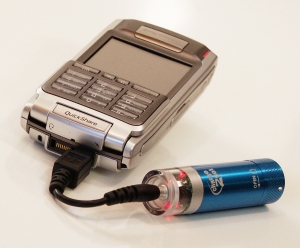
Enter the Charge2Go emergency cell phone charger. You pop in a single AA battery (alkaline, lithium, or even rechargeable), plug in the short connector cable, and hook it up to your cell phone's charging port. Two red LED's start flashing on the top to let you know it's providing power to your phone. The LED's go out when the AA battery is discharged. The main unit is best described as the size of a small flashlight or lipstick, so it easily fits in your pocket or laptop bag. I like that it takes a AA, since they're easy to find on the go. It also makes the Charge2Go reusable.
How It Worked:
I gave it a try with phones from LG and Motorola. Overall, it does the trick, but you have to know how to best use it. Initially, I was disappointed. I had tried to use the Charge2Go to recharge the phones' internal batteries, so I wouldn't have to talk on the phone with the charger attached. Three times it drained a fresh AA alkaline in about 30-40 minutes, but when I powered each phone back up, there was no noticeable increase in battery capacity. On the last test, the phone shut itself off within seconds.
After a helpful call with Charge2Go, I tried a different approach. This time, I used it as an auxiliary battery while making calls. It's a little strange to leave it dangling from the bottom of the phone, but it worked. On the same discharged phone that powered down immediately on its own, I easily made over 25 minutes of calls with the Charge2Go attached, and it still had capacity for more. When I detached the Charge2Go, the phone again powered down, so it was very apparent the Charge2Go did its job.
Construction:
The Charge2Go sports a metal barrel, with a nicely machined screw cap that twists very smoothly. Besides looking sharp, the metal barrel is functional. It dissipates the heat generated when discharging the AA battery quickly. Most often, it was only moderately warm to the touch. Only once did it feel on the hot side, so it's best to leave it out in the open while attached to your phone. It only draws substantial power from the AA battery when it's attached to your phone, so you can leave in a fresh battery until it's needed.
 Pricing and Compatibility:
The Charge2Go is affordably priced and you can order online: $24.99 will get you the Charge2Go charger plus one phone connector of your choice included, all with free shipping. Additional phone connectors are only $2.99, again with free shipping. The charger comes in four colors: Black, Silver, Red, and Blue. There are currently 8 phone connector cables available online, and one for the iPod Shuffle for $3.99.
The web site contains a list of compatible phones and connectors. Some of the newest cell phones are not yet supported. After trying the Charge2Go, I recently upgraded to a fully-loaded LG VX8300 that has a slightly different charger port. The LG connector provided by Charge2Go doesn't fit due to some minor changes made by LG. It's a shame that some phone manufacturers change their charge ports between models, so Charge2Go will need to keep pace. The good news is that Charge2Go has already been working on providing additional connectors, so stay tuned.
Considering Alternative Solutions:
Road warriors usually have multiple chargers on hand, but we're not always within range of a wall or car socket. USB chargers help in a pinch, but you end up draining your laptop's battery unless you're plugged into AC. You can also buy a second phone battery, perhaps an extended one that provides longer life. However, those add to to bulge of your device. Also, some phone chargers can't charge the second battery unless it's actually in your phone at the time. That means buying yet another dedicated charger for the second battery to keep it topped off. (Believe me, I've looked at all of these.)
Don't overlook disposable chargers, such as those that look like Zippo lighters. Keep in mind they cost more than regular disposable batteries, but they don't dangle like the Charge2Go. However, if your phone's charging port is on the side, they can make holding the phone a bit awkward and cumbersome.
Bottom Line:
No solution is perfect, and the Charge2Go is best categorized as an emergency charger. Once you get past the dongle form factor, it's simple, affordable, and reusable. When used properly, it was effective in extending my talk time.
I should also note that the original Charge2Go charger reviewed here has been available for a while. In speaking with Ben Ovadia, their VP of Business Development, I've learned that a new model should be released very soon. He shared it will have even more charging capacity due to incorporating two batteries into the charging unit. Considering how power hungry most new mobile devices have become, this should be a welcome upgrade as long as the overall size and weight stays convenient for mobile use.
March 18, 2006
Enhancing Mobile Security - Feature Article
Organizations usually focus more heavily on protecting the castle by fortifying its defenses. However, mobile technology security can be a bit more challenging, in no small part due to the plethora and complexity of devices, user mobility, and increased risks outside the firewall. Sometimes it doesn't receive as much attention, or perhaps is perceived as less securable. Thus I've recently written a feature article on effective mobile security techniques, strategies, and policies, entitled "Enhancing Mobile Security". The downloadable PDF is compatible with Acrobat 5 or higher.
This was originally published as the cover feature in the February/March 2006 issue of Law Office Computing. I am greatly honored by Amanda Flatten, LOC's Editor and Publisher, for granting me permission to publish it here. Amanda, you're the best. If you're in the legal field and have any interest in improving your practice via savvy use of technology and keeping abreast of new developments, then I highly recommend a subscription to LOC.
Posted by Jeff Beard | Permalink | Comments (0)
Avoiding Mobile Computing Burnout
Whether you're a road warrior or just tote a few mobile gadgets, I think you'll find this article helpful in setting expectations and managing your stress from always being accessible. It was recently published online at eLOC, the e-magazine version of Law Office Computing. A hearty "Thank You" goes to Amanda Flatten, the Editor & Publisher extraordinaire, for graciously permitting me to post the entire published version here at LTG (especially for those of you who download the RSS feed).
Avoiding Mobile Computing Burnout
Use technology to enhance your work, not take over your life.
By Jeff Beard
It’s no secret that lawyers and legal staff have high-pressure jobs. As if we were not multitasking enough, mobile technology makes us even more accessible to client service and other demands. Untamed, it leads to information overload, multiple interruptions throughout the day and more stress.
Are your wireless gadgets just making you more wired? Do you need to go on a technology diet? Clients demand more access to you, and you want to provide good service. Mobile technology offers many tools to help you do just that. The problem is, sometimes they deliver too much of a good thing.
Consider how many devices and technologies are used to stay in touch: wireless e-mail devices; Wi-Fi laptops loaded with e-mail, office suite, time entry and various practice applications; cell phones; hands-free headsets; a lot of cables (laptop power brick, modem, Ethernet, universal serial bus, FireWire, audio, iPod charger, cell phone charger and personal digital assistant charger); home, office and cell phone voice mail accounts; professional and personal e-mail accounts; office, PC and Internet faxes; text messaging; instant messaging; replicated e-mail account on your laptop’s hard drive for offline reading; Virtual Private Networks, Citrix or other remote access software; camera phones, digital cameras and portable scanners; and a prepaid Starbucks card (for a liberal dose of Wi-Fi and caffeine).
That is a lot of technology to manage. It’s not uncommon to hear of professionals checking their e-mail in the middle of the night, while driving, during their children’s sporting events and let’s not even dwell on the restroom scenarios. While some will deny these stories, I have heard them all. The faster you respond, the faster your clients and co-workers expect you to in the future. After all, you reinforce their expectations with a five-minute turnaround from your BlackBerry or cell phone. Congratulations — you have just become a victim of your own success. All isn’t lost, however. There are a number of ways you can avoid mobile computing burnout and reduce information overload.
Set Reasonable Expectations
Jim Calloway, director of the Oklahoma Bar Association’s Management Assistance Program, recommends setting parameters with clients during the initial interview. “Communicate that you will normally get back to them within 24 hours, not including weekends,” Calloway said. “Share that you process messages on a first-in, first-out basis. Think about how you are going to handle the client relationship and what mobile access means.” The same goes for managing your relationship with your employer or co-workers. Calloway said legal professionals often can set themselves up for failure by committing to do too much, but setting realistic goals and ground rules will help you manage your workload.Determine Which Mobile Devices Work for You
When it comes to traveling, less can be more. Ask yourself what you truly need to be productive and if you really will use what you take along. If you are reasonably tech savvy and comfortable with different gadgets and access methods, it might be worthwhile to have alternative technologies at your command. If you are not a technophile, then try introducing one new gadget at a time. That way, you are increasing the odds you will be comfortable using it on your own.This might be a gross oversimplification, but generally I find two main types of BlackBerry or Treo users: those who can’t wait to get one, and those who really, really don’t want one, ever. If you are in the former category, make sure it’s for the right reasons and not just to have a status symbol or another tech toy. If you are in the latter category, take heart and use these tips to set reasonable expectations with others regarding your accessibility. You might be able to agree on alternative communication methods or less onerous response times.
Minimize Interruptions and Multitasking
Remember, technology speeds up many tasks, including the pace at which we make mistakes. “It’s important to recognize multitasking invites errors and misunderstandings,” Calloway said. “We have all sent e-mails that we wish we had never sent.”Brett Burney, legal practice support supervisor at Thompson Hine in Cleveland, advises professionals to avoid the diminished returns of too much multitasking and to focus on the quality of work clients deserve.
Learn and Use the Technology You Have
Burney said he sees a lot of frustration stemming from underutilization of mobile gadgets. “One great way to avoid at least some of the tech-burnout today is to educate yourself on the functions of a device, and beyond that, even to learn a few tips and tricks,” he added. For example, instead of manually scrolling through e-mails, Burney said Treo users running GoodLink software simply can press the “T” key to jump to the top of the list to read a newly arrived message. “While it might only save me several seconds, I am happier because I am immediately looking at what I want to see. I realize this means spending more time with a device, either reading the instructions or just playing with it, but it pays off in the long run because I don’t get so frustrated,” he said.Also, be cautious about adding mobile technology to your arsenal too quickly. Give yourself a chance to absorb it at a comfortable rate. Don’t ask for it if you don’t need it. If you need it, then learn how to use it properly and use it on a regular basis. Great tools are a wasted investment if you can’t use them when you really need them. Don’t wait until you are on deadline or two hours before a flight to pick up a new mobile tool without sufficient training. That is just asking for stress. Instead, plan ahead, test it and ask questions so you will be able to use it well before you leave. For instance, remote access accounts can become disabled if not used regularly. If you have VPN access, but use Web access most of the time, you could forget your VPN personal identification number or password, or the account might need to be reset. This is best summed up as “use it or lose it,” in which case you have unanticipated remote support problems adding to your stress level. Also, it’s not fun for the Information Technology folks who must support your remote technology. In many cases, an ounce of prevention keeps disasters at bay.
If you don’t have time to teach yourself how to properly use mobile technology, find out if your organization or a technology vendor offers any training or user guides. Portable cheat sheets and instruction cards are useful and easily fit into a briefcase or laptop bag.
Recognize That Technology Isn’t Perfect
Bad things often happen — batteries die, power cords get left behind, hardware fails, software applications have bugs, viruses abound, entire systems become unavailable at times, and yes, we all have made mistakes while using technology. That is life in the digital age. In recognizing this, however, we can generate effective alternate plans to get things done.For example, if your cell phone or PDA dies, have a backup list of names and telephone numbers on your laptop or on a flash drive. Planning ahead for outages and problems is one of the best mobile lawyering stress relievers. It’s only a matter of time before Murphy’s Law strikes, and while it’s never fun, knowing you still can communicate and work productively under pressure is a nice safety net.
Use the “Off” Button
Mobile devices have to be recharged — and so do you. If you stay connected all the time, you will become drained and less productive. Put all your commitments into perspective and make adjustments. For instance, turn off wireless e-mail devices and cell phones at family events, or even better, consider whether you really need to bring them to these events at all. Admittedly, most of us like to carry cell phones for personal safety and convenience. In that event, it’s OK to send calls to voice mail. For this reason, I prefer phones with external Caller ID displays for triage purposes. Check if your phone offers a shortcut to manually force an incoming call to voice mail rather than having it vibrate or ring several times. For example, I discovered that pressing the side volume down button twice on my LG cell phone does the trick.If you are in a meeting with a client, there is nothing worse to that client than constant buzzing or ringing interruptions. This gives the client the impression that you are not giving your full attention. Indeed, some firms have added this to their etiquette training. For longtime road warriors, cutting that wireless cord can feel strange at first, but it gets easier with practice.
As professionals, we are quite fortunate to have a wide variety of mobile tools at our disposal. As tools, they serve very useful functions. The trick is to manage them before they manage you by setting realistic expectations and ground rules. There still will be times when you become overloaded or frustrated, but I hope some of these tips better prepare you to anticipate and work through them.
Stress-Busting Tech Resources
- “Technology, Stress and the Lawyer’s Quality of Life,” by Jim Calloway, director of the Oklahoma Bar Association Management Assistance Program
- JDBliss, “A Blog for Attorneys Seeking Career Satisfaction, Work/Life Balance and Personal Growth”
Jeff Beard is the legal services IT manager with Caterpillar Inc., a Fortune 100 company headquartered in Peoria, Ill. He is a former practicing attorney, and is a frequent national author and presenter on contemporary legal technology and practice management issues. Beard enjoys working with mobile technology, and covers many such devices and issues on his blog, LawTech Guru. This article was submitted in his individual capacity, and all views stated are his own.
Posted by Jeff Beard | Permalink | Comments (0)
December 06, 2005
2005 Holiday Gadget Gift Guides
'Tis the season for all good gadget lovers to find something cool online, at some of the lowest prices of the year. I've made a list and checked it twice, so here's some great online technology gift guides, other resources, and tips to help you or that special someone get that ultra cool gadget that's been wanted all year:
Online Techno Gift Guides:
- PC Magazine has their 2005 Holiday Gift Guide, which includes daily gift ideas, a high tech wish list, product guides, shopping advice, and more. Perhaps one of the more useful columns is What Not to Buy in 2005. It tells you which items or technologies are on the way out, and which ones you should get instead.
- Computer Shopper has their Present Tech product roundups. It's nicely categorized into The Audiophile, The Frequent Flier, The Newbie, The Fun Lover, The Trendsetter, and Thrifty Gifts. Something for nearly everyone.
- CNet has their Editors' Choice Awards, listing products and services that have won their editors' nod for "best buys" in many categories, from PCs to home entertainment systems, peripherals, mobile tech, and more.
- Wired News offers The Ultimate Geek Gift Guide, by Home, Mobile, and Everything Else (which goes far beyond the mundane PC stuff, including a $1,000 Taser gun, for that hard-to-buy person).
- PC World checks in with Gadget Freak: Holiday Tech Grab Bag--Gadgets to Love or to Lose, an eclectic review of some of the good, bad, and the uglier side of holiday tech gift offerings.
- A bit closer to home, Reid Trautz offers his 2005 Holiday Gift Guide for Lawyers, a combination of the useful and whimsical stress relief.
Once you found something you like, how do you know how good it is? Is it a quality item, or just as likely to break right after the short warranty expires? Here are my preferred methods for finding this information online:
- Search for online reviews: I often search Google and other leading search engines by including the product name or part number, followed by the word "review". That usually brings up a number of useful reviews by professionals and consumers alike.
- Check out the customer feedback on Amazon.com, even if you don't buy from them. You'll likely find out in a hurry what's good or bad about it, similar products or complementary products, and perhaps even some great tips and tricks for using them.
These are the unsung heros in online shopping. They quietly scour the web for all kinds of price cuts, rebates, coupons, specials, and other online and offline deals to save us a bunch of money. I've been able to pick up all kinds of tech gadgets at half prices by tuning into these sites. Some even offer RSS feeds, which are extremely useful if you have the right RSS reader.
I use FeedDemon, wherein I have a special group for these deal sites along with "Watches". Easily created in mere seconds, Watches automatically search the feeds as they arrive. They collect the matching results for anything I'd like to get at a phenomenally good price, such as flash memory cards, USB hard drives, etc. Think of it as news clipping for online deals. That way, I don't have to manually visit each site. I just look in a particular Watch bin to see which new deals match the desired product. All of this is especially important since these kinds of deals are very short-lived -- low-priced stock sells out in hyper-time, and the coupons/rebates expire almost as quickly. But if you jump on them within a day or two, you may have a pretty good chance.
Some of my favorites, complete with RSS feeds:
If you're shopping online, it'll often save you time and money to compare prices. PC Magazine has a review roundup of 6 price comparison sites, complete with ratings and good discussions on what's good and what's lacking.
My personal favorite and all around standby is Pricegrabber, but I've known to use Shopper, Shopzilla, Froogle, and Cairo on occasion.
Don't Forget the Customer Support:
Last, but certainly not least, it's important to be able to contact your online seller by telephone when you have a problem or question. Some online sellers make their customer support numbers accessible, while others would rather that you just leave them alone, as evidenced by a complete lack of contact information other than the dreaded e-mail support. That's a good sign in itself to steer clear regardless of the price. But if you just can't find it anywhere else or feel so compelled, DVDTalk.com offers this valuable consumer resource:
- DVDTalk's list of over 40 online retailers' Customer Service Phone Numbers & Email Addresses. Perfect for when you "just can't get no satisfaction".
Like everyone else, I still buy a lot in stores. However, being a busy professional, sometimes it's just nicer to stay home and let my fingers do the shopping. I often find desired items I can't find in local stores, and at better prices. Have a Happy Holiday, and hopefully this will make your holiday shopping a bit more enjoyable and save you a few billable hours in the process.
March 19, 2005
(Free) Wireless Internet Via Your 3G Cell Phone
A LawTech Guru feature article by Jeffrey Beard
A number of newer cell phones are 3G-capable, meaning they can transfer data at broadband speeds. Having faster-than-dial-up Internet access in increasingly larger cell phone coverage areas is key. If you're reasonably tech savvy, your cell phone can become a USB modem.
For more information about cellular data network providers, the recent PC Magazine article, "Wireless Without Borders: Networks for Those on the Go", is a must read. (My thanks to Brett Burney, fellow legal tech guru over at Thompson Hine, for the link.) Suffice it say, the PC Mag article validated my choice last year to sign up with Verizon Wireless. Verizon may not have been as quick to release new Treos, but their network has been phenomenal in my personal experience so far. Obviously, each person's experience may vary.
Caveat: Things change quickly in this market, and not all services are offered in all locations. It's common to get conflicting answers even from different employees of the same carrier. Do not rely upon the information presented here. It is best treated as a guide only, chronicling my individual experience, and does not provide legal advice or conclusions in any way. I cannot emphasize strongly enough the need to verify everything with your cell carrier before proceeding.
Some carriers will tell you that you absolutely need an expensive data plan to do this (possibly an additional $40-$80/month). However, like most people, I prefer using Wi-Fi connections since they're much faster. Therefore, I'm not planning to use the cell modem all that much, so this doesn't meet my needs for the cost. With some cell providers, with the right voice plans (generally the national plans), 3G phone models, cables, and software, it may be possible to have cell Internet access for free or nearly free. By this I mean some only use up airtime minutes, with no additional data plan charges. If it's used during free evening and weekend minutes, then it shouldn't cost anything extra.
So what kind of speed am I talking about? On average, with a good signal you're probably looking at 60-120kbps download speed on the low end, with 300-500kbps on the high side. It depends on the network type and location. Even at its worst, it's definitely snappier than dial-up, and believe me, it's quite usable. It sure beats the incredibly slow 14.4kbps speed common on the older 2G or 2.5G cell networks. (Been there, done that, and moved on quickly.) It's possible the highest speed networks may require a data plan subscription. But then one has to evaluate whether it's worth the added expense.
What Do I Need?
It varies with the cell provider and phone hardware, but in essence, the following is needed:
- 3G cell phone (i.e., capable of high-speed data transfer -- the actual technology varies by network)
- Data service activated on your cell account
- A cell phone-to-USB adapter cable (for your PC connection)
- USB and modem drivers (for your PC connection)
To be candid, I had low expectations for the MOK (I've been disappointed with cell connectivity kits previously), but it was worth it. While the software is somewhat basic, it auto-detected the phone, installed the phone's Windows modem driver, and created several DUN connections. It appeared I was all set in just minutes. How often does that happen? Right -- too easy. There were a few minor problems needing resolution before I could get online.
The two new DUN connections for Verizon Wireless wouldn't log in. They had incomplete login information configured. In addition, the new VZAccess Manager program kills my Wi-Fi card utility in the system tray. Each time after running the VZAccess Manager, I need to reboot Windows to get back the Dell Wireless WLAN Utility. The latter is not a serious problem, simply because I don't need to run the Verizon access software again. The DUN connection was easily solved with a little Googling for the necessary login information (see below). With that solved, to log on, I simply use my new Windows dial-up connection. This is actually much faster than launching the Verizon software.
If your carrier doesn't provide a mobile connection kit, don't fret yet. Sites like FutureDial offer the necessary hardware and software. Also check your local Radio Shack for the same.
Treo owners may want to check out PdaNet. This program enables a Treo smartphone to be a wireless modem for your PC. (PdaNet info courtesy of Brett Burney.)
Also, for select LG, Samsung, and Sanyo phones, BitPim is an open source program that lets you sync the following items: PhoneBook, Calendar, WallPapers and RingTones. This isn't for Internet access, just another option for transferring data to/from these models to a PC. I've not tried BitPim, so I can't say how well it works. As I was looking for a way to put my own pictures and ringtones on the phone now that I have the special USB cable, this has some definite possibilities. However, it occurs to me that using two different syncing programs with the phone could open the door to new problems.
If you have a non-wireless PDA, there are several sites which sell PDA-to-cell phone cables, such as Gomadic and SupplyNet.
How Do I Get Access?
You could do what I did: Talk to your cell provider and go Googling to confirm you received good information. I've found the following links to be quite helpful:
- Engadget: "HOW-TO: Use your CDMA cellphone as a USB modem"
(You know this is big when Engadget posts about it, which includes tips for Sprint PCS, Verizon Wireless, and even for GSM phones on Macs and Windows.) - Using Verizon Cellular Phones as Modems
(Enter all login information in lower case. In my case, I was never able to get authenticated into the slower 2G QNC network, but Express Network works great for me at twice the speed of dial-up.) - If you have a dial-up ISP account, it's certainly another option, but it can be painfully slow.
When I tried this through Verizon Wireless, it resulted in a 14.4kbps connection with only 10kbps of average throughput. Even though it's a 56K dial-up account, it was clearly going through the older 2/2.5G network. This is best used as a backup option when all other Internet access is unavailable -- it's still better than nothing when you absolutely need access. Just don't plan on being in a hurry, and you may want to access various PDA portal sites, which are optimized for low data transfer (and small screens):
- There is a LOT of confusion out there about cellular data access. All one needs to do is read this pdaPhoneHome thread for a taste of what can go wrong, especially on the billing side. It's not pretty.
If you happened to wonder whether this is scamming the cell phone carrier, so did I. That's why I called Verizon Wireless -- twice -- for confirmation. I let them know exactly what I wanted to do, and asked whether I would be charged for usage without a data plan subscription. I received essentially the same answer on both calls, which corresponded with what my local Verizon rep told me: Their 1X phones (short for 1XRTT, their intermediate high-speed network) are already data-enabled for the other data services (e.g., the web browser and their "Get It Now" service for downloading games, ringtones, etc.). I noticed from this comparison of cell carriers' data plans that 1XRTT networks peak around 144kbps, while the newer EV-DO networks provide faster average speeds of 300-500Kbps with bursts as high as 2.4Mbps. From my speed tests and the 1X indicator on the phone, I'm apparently using the 1X network, but it's still very good and the price is certainly right.
Other than using my airtime minutes, Verizon Wireless stated I would not be charged for using their high-speed ISP service on my LG cell phone. Nights and weekends are free. One rep told me the only catch was that without my subscribing to a monthly data plan, they are providing the data service without tech support. So if something goes wrong, I'm supposedly on my own. If so, you get what you pay for, and I can certainly live with that as a fair trade-off.
By the way, each time I've talked to a Verizon Wireless store, billing, or tech support rep, they've been very helpful, friendly, and for the most part, fairly knowledgeable. If they didn't know the answer, they either looked it up or connected me to someone who did. Believe me, I don't ask the easy questions, and they've really tried hard to answer them all and assist me.
To all this, I cheer with a very loud "Kudos!" to Verizon for providing such value-added services. I'm seriously considering canceling my dial-up ISP, which in a short time will save me more than I paid for the mobile kit. Since I have cable broadband at home, I only kept the dial-up for backup access and for traveling when all else failed.
Verizon's cell ISP connection also works with my VPN. Which lets one do cool and useful things such as wirelessly syncing a PDA to a laptop, with the laptop simultaneously connected wirelessly via Wi-Fi or a cell phone to an office network via a more secure VPN connection to sync the data. (Okay, so there's a short cable between the laptop and cell phone. But the phone is transmitting a wireless data signal.) While it's one extra cable to carry and perhaps not as sexy as Wi-Fi, it's another useful and relatively high-speed tool in my road warrior bag of tricks.
When you're on the road, having more access options is a very good thing. Doubly so when it doesn't cost anything extra per month, especially if it's just needed for backup. After all the 3G hype these past several years, it's nice to see it finally come of age and made available closer to the mainstream.
December 20, 2004
Two New Wi-Fi Detectors Reviewed
An exclusive LawTech Guru feature review by Jeffrey Beard
Whether you're traveling the globe or working within a wireless office, it's handy to know where to find the Wi-Fi hot spots. With the proper precautions, wireless networking adds a considerable amount of convenience and bandwidth when on the go. I recently had the opportunity to use two of the newest Wi-Fi detector/locators: The WiFi Seeker from Chrysalis Development (around $30 retail), and the HWL1 802.11b/g WiFi Locator from Hawking Technology (between $30-$35 retail). They both work on the same basic principle: Push the button to scan the area for a usable Wi-Fi networking signal. Both display the resulting signal strength as a series of lights, much like the signal indicator on one's cell phone. Neither will tell you if the detected network is open or secured, nor provide the network name, so the rest is up to you. Despite these limitations, it's very handy to find a hot spot without first having to boot up your laptop.The WiFi Seeker has some nice things going for it. It's the smallest WiFi detector on the market by far, about the size of a regular car or other keychain-sized remote, and you can attach your keys on its ring. It fits comfortably in your pocket and barely takes up any room in a crowded laptop bag. It claims to filter out extraneous 2.4GHz signals from cordless phones, microwaves, and other non-WiFi devices. It also claims to pick out the Wireless Access Point (WAP) and ignores other wireless network client devices, such as other wireless cards in "Ad Hoc" mode. It's also extremely quick at signal detection, usually only needing between a half and a full second to complete its scan when a good signal is present. Once in a while, it would take between 1 - 2 seconds, which is still plenty fast. While I would have liked to see at least a five-segment LED signal meter for better differentiation, the four LEDs work nicely.
In actual practice, I found the WiFi Seeker lived up to all of its claims. It successfully found Wi-Fi networks with ease. Its signal strength meter reported consistent and accurate results. Occasionally, in good areas it would initially lock on with 3 bars, and light the fourth within a second. In exceptionally strong areas, all four LEDs would immediately light up at once. The WiFi Seeker works well directionally. By pointing it in different directions, the varying signal strengths enabled me to figure out which way to walk toward a stronger signal.
The WiFi Seeker successfully ignored other Wi-Fi client cards, as well as a Uniden 2.4GHz cordless phone and a microwave oven. (Only if you placed it within a few inches of an operating microwave oven would it generate a false positive -- which I don't see as any failure in everyday use.) The visual interface works well: Four bright, large red LEDs sweep back and forth during scanning, and become solid when a Wi-Fi signal has been detected. It's drop dead easy to use and read. The large square button is easy to find and press without looking for it. (If you've ever watched the KITT car on Knight Rider, or have seen a Cylon from the original Battlestar Galactica TV show, you'll appreciate the WiFi Seekers' cool visual sweeping pattern during its short scan. It's simple yet effective.)
In comparison, the Hawking Technology HWL1 802.11b/g WiFi Locator also boasts some interesting features per its web site: "The signal filters on the HWL1, filter through all unwanted 2.4GHz signals, such as BlueTooth, cordless phones and microwaves, providing a reliable and accurate reading each and every time." "The HWL1 is also equipped with a flip-open Hi-Gain Directional Antenna that helps you determine exactly where the hot-spot source is coming from."
Styled and sized like a flip cell phone or Captain Kirk's communicator, the HWL1 is 3.6 inches long and fairly thick, so it occupies a good amount of room in your pocket or laptop bag, style notwithstanding. Basically, it's between 2-3 times in width and height, and twice as thick as the WiFi Seeker. In other words, it's really big in comparison. On the bright side, this allows it to have a much larger high gain antenna, and it easily sports five very bright blue lights for its signal meter. While the power button is very small, you only need to press it briefly to start the scan cycle. This provides immediate feedback by having the blue lights blink approximately twice per second for nearly 5 seconds. If you want a longer scan, you can hold the button down longer, and it will continue to scan until you let go.
Overall, it worked fairly well. However, since it was released after the WiFi Seeker, I expected the HWL1 to excel in some way that never materialized. While it mostly does what it says, I found several annoyances, and one glaring functional problem. First, the annoyances: The signal lights do not stay solid, and they tend to jump around a lot between blinks, which makes it rather difficult to determine the signal strength. For example, while holding it rock steady, the HWL1 WiFi Locator's lights would often jump between two, three, and four lights during its scan cycle. From my end-user perspective, this shouldn't be happening when the Wi-Fi signal is constant and the WiFi Locator is stationary. At times, the directional antenna would help me find the Wi-Fi source, but just as likely, the lights would jump around so much it was nearly impossible to tell which direction had the better signal.
The HWL1 WiFi Locator also seemed to be more sensitive than the WiFi Seeker overall, which is both good and bad. On the plus side, the HWL1 might help you find more Wi-Fi access points than the WiFi Seeker, but they would likely be the weaker signals. Thus those signals may not be strong enough to be usable by your Wi-Fi card. In comparison, the WiFi Seeker from Chrysalis Development appeared more discriminating, which from my perspective increases the likelihood of it detecting a usable signal. With that said, if you're really desperate for any Wi-Fi signal, then the HWL1 may detect it, or it may also send you on a wild goose chase.
Which brings me to the one glaring problem I had with the HWL1: In a family member's home devoid of any Wi-Fi signals, the HWL1 lit up the full five bars. The only wireless signals present were being generated by a Uniden 2.4GHz cordless phone set (my laptop and its Wi-Fi card were powered down at the time). In the same house, the WiFi Seeker did not detect any signal, so it properly distinguished the cordless phone from an 802.11b/g signal. I then confirmed there were no rogue neighbor Wi-Fi signals via my laptop's wireless networking utility and running NetStumbler. As the HWL1 also registered a higher signal in the same room as the cordless phone, I felt I had ample reason to conclude the HWL1 was fooled by its 2.4GHz signal.
The flip-up antenna is also a drawback when you're toting baggage -- it takes two hands to open it, unless you prefer doing the one-handed Kirk-style communicator flip with your wrist. Unlike the WiFi Seeker, whose large power button is conveniently accessible on the outside, you must open up the HWL1 to access the power button to do your scan. Overall I was just less impressed by this device. On the plus side, it does detect 802.11b/g networks, but the jumpy signal lights effectively canceled out any advantage the larger directional antenna provided, if any.
After using both, the smaller WiFi Seeker was the better device in my experience; sometimes good things do come in small packages. If the HWL1's larger high gain antenna made any significant difference, then I could see some value associated with its chunkier size -- but it didn't. In comparison, the WiFi Seeker appears more discriminating, and it works well directionally. It was also consistently easy to read its results. Therefore, it's fun to use, and I can be more discreet using it than the larger HWL1. Overall, I've been very satisfied by the WiFi Seeker's size and performance, and can easily recommend it if you're looking for a good tool to make your mobile life just a little easier. Incidentally, the WiFi Seeker is also branded as the WiFi Spy, PCTEL WiFi Seeker, and the Mobile Edge WiFi Signal Locator.
August 01, 2004
Wireless Networking Best Practices: Version 2.0
I've updated my Wireless Networking "Best Practices" to add even more things you can do to harden your wireless network against intrusion. Please keep in mind there is a diverse range of networking equipment available, and that this information is provided as a courtesy. I've taken considerable time to compile and publish this information, because I have not found any single good source for all of these items. It's grown into quite a compilation.
This is also mostly geared toward home Wi-Fi networks, but the concepts are adaptable for corporate networks as well. Thus, you choose to make all changes at your own risk. If your router or access point has an option to backup its settings, then I highly recommend you back it up before and after making any changes, as well as being diligent in documenting any changes made. If you don't want to be an easy mark for wardrivers or your neighborhood hacker, read on. It's worth your while.
First, you really must change many of the default settings. Hackers and wardrivers know them all, because there are web sites that publish them.
This means you'll need to access your wireless router's configuration screen. One of the easiest ways is doing this through your web browser, and while you should be careful in the settings you change, it's something even a novice can do. While this isn't an all-inclusive list of security measures, these are things most home network users can do with care:
- Change the default SSID (Service Set ID or network name).
Hackers know all the default values for nearly each make and model, as they are posted all over the Web. If you really want to know, try another simple Google search for the following: default wireless SSID.
The SSID is your network name, and your wireless cards use this like a login name to connect to your network. That's why it's so important to change it from the default value. Resist the urge to name it after yourself or anything personally identifiable -- this just makes it easier for a hacker to find or guess a targeted network's name, and you just provided the casual hacker with your name.
- Disable the SSID broadcast.
By default, most wireless network equipment broadcast the network name to make it easy to find and connect to. If it's a convenience to you, it also makes a hacker's job a whole lot easier. Free programs like NetStumbler make it a breeze to find nearby networks and to tell its user the network names, whether or not they're encrypted, and much more. Disabling the broadcast of your network name essentially hides the network's login name. If convenience is a concern, then instead of broadcasting your network name, you're much better off setting your wireless software on your laptop to automatically login to it as a "preferred network".
Be forewarned, however, that even if you turn off your router's or access point's SSID broadcast, your laptop's Wi-Fi card will give it away. Wi-Fi cards broadcast the SSID in clear text when they attempt to connect to your Wi-Fi network. Like many of the other precautions listed here, disabling the SSID broadcast just makes it a little harder for the bad guys. The upside is that you're not broadcasting your network name 24 x 7, and that helps to make your network less visible. Otherwise, leaving the SSID broadcast enabled is the same thing as putting up a neon sign that says, "Hey guys, here I am, come hack me!"
- Change the default password for the router's Administrator account.
Again, wireless hackers know these defaults, most of which are simply "admin". Try a Google search for: default wireless router passwords. You'll find sites that list the login names and passwords for many manufacturers. Even if your particular model isn't listed, many manufacturers use the same values across their models.
If you don't change the password, then an intruder could easily reprogram your router to lock you out and open more security holes to allow him/her easier access. You'd then have to reset your router back to its default factory settings, and start all over again.
- Enable MAC Address Filtering.
This is a key wireless security measure, as it adds yet another layer of protection. Every Ethernet network card, wired or wireless, has a unique number called a MAC address. Enabling this feature tells your router to only allow access to authorized Ethernet cards. While it's possible for hackers to "spoof", or fake, a MAC address, it requires a higher level of hacker savvy, and it takes longer. The idea is to make it as difficult and time-consuming for wireless hackers, to discourage them to move on to easier pickings.
If you're wondering where to find each network card's MAC address, many of them have it printed on a label right on the card. Here's another easy way to find it:
For Windows NT/2000/XP/Vista:
1. Click on Start, Run, and type in cmd
2. Click OK, and a DOS-like window will appear.
3. Type ipconfig /all and press ENTER.
4. This will likely list information both for your ethernet network card and for your second wireless card. Under the wireless card, the "Physical Address" line should provide the 12-digit MAC address.For Windows 9x/ME:
1. Click on Start, Run, and type in winipcfg
2. Click OK, and an information window will appear.
3. In the pull-down section, click and select your network card.
4. The "Adapter Address" is your card's 12-digit MAC address.This 12-digit number is the one you need to enter into your wireless router's table. Make sure MAC filtering is set to only allow specified MAC addresses access to your network.
- Limit the number of allowed connections to the bare minimum needed.
Most routers will let you restrict the number of network connections. For example, if you have one desktop and one laptop, you only need two connections.
- If you can, consider disabling DHCP and assigning each of your PC's a static IP address.
DHCP (Dynamic Host Control Protocol) is a method in which your wireless router automatically assigns an IP address to each PC connected to the network. Thus if a hacker joins your network sufficiently, your router will cheerfully give her an IP address as well. Which is why limiting the number of connections is so important, and turning off DHCP so they don't get an automatic IP address.
BIG CAVEAT: It's probably ill-advised to set a static IP address if you connect your laptop to an office network. Most corporate networks use their own DHCP servers to assign and control IP addresses, and your static IP address could conflict or be in the wrong range. Thus if your laptop needs to connect to two or more networks, you probably will want to leave this alone.
- Enable the highest encryption possible: WEP 128-bit (802.11b) or WPA with TKIP or AES (802.11g).
Due to the relative ease in which WEP (Wired Equivalent Privacy) is cracked, WPA (Wi-Fi Protected Access) is vastly preferred. For home use, most people will want to enable WPA Pre-shared Key (WPA-PSK) and use a long key name with a mix of upper and lower case letters, numbers, and odd characters (such as ~!@#$%^&*).
For the WPA Algorithm, at a minimum choose TKIP (Temporal Key Integrity Protocol). Better yet, use AES (Advanced Encryption Standard) if your router, Wi-Fi card, and software support it. TKIP is an interim industry solution, but it adds the ability to automatically generate new keys at preset intervals. (For you Trekkies, this is akin to rotating the shield harmonics to repel the Borg. ;^) Rapidly changing keys gives the wireless hacker much less time to "sniff" and break the code before it changes again. Again, AES is the stronger encryption method that the wireless networking industry has been moving toward and is the preferred choice. If you have it, use it. [Update: The TKIP protocol has been partially hacked, so only use it if your router doesn't support AES. Many router manufacturers provide free firmware updates for your router that will allow you to use AES encryption instead.]
Please note that encryption reduces your overall network performance. However, since Internet speeds via cable and DSL are usually much slower than your network with encryption (especially under the "g" protocol), it should have no effect on your Internet access speed, just on file and print sharing speeds within your local network.
If you don't have WPA as an option, check your wireless equipment's manufacturer's web site for any firmware upgrades to WPA. If you can't upgrade your equipment, then enabling WEP encryption is better than nothing. However, I strongly suggest spending the money and upgrading to newer equipment that features much stronger encryption and is faster (12mbps with "b" wireless vs. 54mbps with "g" and 108mbps with "super g").
[Update: If your router and wireless devices support WPA2, use it instead of WPA as it is more secure.]
- Don't run your wireless network as a mixed "b" and "g" environment.
While 802.11b and 802.11g networks are compatible, it's not desirable regarding both security and performance results. The problem is that as soon as you add even a single "b" device to your wireless network, it brings the network down to the lowest common denominator. In this case, that means you only get the weaker and inferior WEP encryption (unless the "b" device can handle WPA), and the much slower "b" network speeds. Thus running a "pure g" network is better all around.
- Limit folder/file sharing to the minimum with password protection.
If you're home network is typical, you may have enabled folder/file sharing between your PC's for convenience. If you must enable sharing, then limit it to only those subdirectories required. Don't enable sharing at the root level of the hard drive. For instance, you might want to move a shared "My Documents" folder to another drive or partition and only grant access to it, rather than your entire hard drive.
- Change the default IP address of your wireless router or access point.
Again, hackers know these default addresses, so they know where to find your network devices. For instance, many Linksys routers default to 192.168.1.1 and Netgear's are 192.168.0.1. Under Internet standards, one of the three available private network IP ranges is from 192.168.0.0 to 192.168.255.255. (Tip: Each 3-digit section can only go from 0-255. Also, since 0 and 255 can have some special significance, avoid these two values.)
For example, you could change the IP address of a Linksys router from 192.168.1.1 to 192.168.100.1, or 192.168.1.100 (depending on which of the last two segments you want to change). Or you could pick a really odd number to make it difficult to guess, such as 192.168.177.13. Just keep in mind that it's more important that you can remember it. Otherwise, you won't be able to access your router to make changes (at least not without having to reset it to factory defaults and losing all of your hard work -- not good).
If you change this default IP address, also keep in mind that if you ever need to reset the router back to its factory defaults, afterward you'll have to manually login at the default address (e.g., 192.168.1.1) and change it back to your custom number. If your router is not using DHCP, then it's a good idea to keep your PC's IP addresses and the router's address coordinated.
By changing your router's default IP address, you are changing its location on your private network. Thus a hacker looking to access your router for reprogramming or discovering your settings will not find it nearly as easily.
- Make sure the router's firewall is enabled.
Most routers have their firewall enabled by default, but just make sure it's enabled, along with any related feature to block pings or "anonymous Internet requests". This will help stealth your network's presence to the Internet at large.
- Make sure the DMZ is disabled on the router.
A DMZ (DeMilitarized Zone) is a buffered zone that separates the Internet from your private LAN. However, in most SOHO routers, enabling the DMZ bypasses your router's NAT (Network Address Translation) and other filters, so it greatly weakens the security of any device located in the DMZ. Thus unless you're very savvy with networking, keep the DMZ feature disabled.
- Disable the router's Remote Management feature.
Remote management allows you or others to access your router to change its settings from outside your local area network. This should already be disabled as a default setting, but check it. Disabling remote management only allows access to the router's settings from within your private network.
- Disable Universal Plug 'n' Play (UPnP) on your router unless you absolutely need it.
UPnP is used for some devices like the Xbox game system. If you don't have a UPnP device, then make sure it's disabled. Otherwise, it's another potential security hole for your network.
- Use a VPN to connect to your office network when using a wireless network.
A VPN (Virtual Private Network) provides remote access to an organization's network over the Internet, through secure "tunnels" created by additional encryption. Typically, when your PC is connected to your office's network via a VPN, it can't "see" the rest of the Internet. Thus it's no surprise that VPNs are commonly used to help secure wireless networks. If your organization offers VPN use, it's yet another wireless networking best practice in your arsenal.
- Place the wireless router or access point away from outside walls to minimize signal leakage.
The closer you locate it to an inside wall, the more signal drop-off will occur by the time it reaches the outside. You don't want to provide a nice strong signal for others to jump onto your private network.
- Configure your laptop's wireless card software appropriately.
To avoid accidental connection with strange Wi-Fi networks (you don't know where they've been or who's on them), configure your wireless card's software for the following:
- Connect only to access point (infrastructure) networks, to avoid any undesired "ad hoc" peer-to-peer connections, and
- Uncheck any feature for automatically connecting to non-preferred networks. Otherwise, your laptop will jump onto the first open network it finds. If you routinely forget to turn off the card's radio, this will help stop it from getting you into trouble.
Additional "Must Use" Safeguards:
- Personal or software firewalls, such as ZoneAlarm Pro and Norton Internet Security
Even if your router has a good firewall, it generally won't stop outgoing traffic from spyware and malware that's phoning home. A properly configured personal firewall will. You also need a personal firewall on your laptop when you connect to other access points, such as when traveling.
- Good antivirus software
I'm quite partial to the Norton Antivirus line, it just works without causing me any problems.
- Anti-spyware/malware programs, such as Ad-aware, Spybot Search & Destroy, and PestPatrol
Ongoing Maintenance for the Best Security:
- Keep the personal firewall and antivirus programs updated with the latest definitions.
- Keep up with the various security patches from Microsoft.
- Change the router's login name and/or password periodically. Use strong passwords (at least 7-8 digits, with mixed case, numbers, and other characters).
- Change the wireless network SSID value periodically. Again, use strong names (at least 7-8 digits, with mixed case, numbers, and other characters).
- Change the WEP or WPA encryption keys periodically. Same advice regarding strong passwords applies.
- Always check all of the above settings after performing any router firmware upgrades. For example, Linksys router owners discovered that upon upgrading from firmware version 2.02.2 to 2.02.7, Linksys changed the firmware's UPnP default to "enabled" just to earn Microsoft Xbox certification. However, for most of their customers, they just opened up another potential security hole. Thus it's helpful to print out all of your router's setting pages and keeping them in a secure place for reference.
Naturally, the more secure you make it, the less convenient the setup. But I'll take the extra wireless security anytime, because wireless networks are still horribly insecure compared to wired. But as you can see from the above, you can still do a lot to harden it against intrusion, and it doesn't take a networking guru for many of them. Wi-Fi itself is a tremendous convenience and enabler, if it's done right.
[Update 11.29.08: Please see my post, "Wireless WPA Encryption Component Hacked -- How to Protect Yourself" in light of the published TKIP vulnerability.]
Posted by Jeff Beard | Permalink | Comments (0)
April 09, 2004
Making Sure Your E-Mail Newsletters Get Read
A LawTech Guru feature article by Jeffrey Beard
(For reprint arrangements, please contact me via .)
How many of you send out e-mail newsletters to clients, friends, business acquaintances, and more? Probably some. Now how many of you are absolutely sure that the vast majority of your recipients actually see them? Probably none.
If you could think of a single feature of e-mail newsletters that would dramatically increase the odds that they actually get read, what would you pick? Is it fancy HTML formatting? Compelling subject lines? Savvy content, perhaps? A few years ago, I probably would have agreed with any of these, particularly content. However, in today's world, I just might opt for Getting Past the Spam Filters.
You see, legitimate e-mail newsletters tend to have much in common with spam: They are mass-mailed and often have disclaimers, instructions and links to unsubscribe, suppressed recipient lists, assurances they comply with anti-spam laws, and more. That sounds like spam to me, and more importantly, they look like spam to a number of spam filtering software and services. Unless the recipient "whitelists" your newsletter, thus telling the spam filter it's okay, a good chunk of your newsletters may be filtered into your recipients' e-mail spam folder, or worse, blocked or deleted automatically -- before they ever have a chance to see them.
So what can you do? Well, a little crash course in spam filtering software wouldn't hurt. I'll use SpamAssassin as an example since it's very popular (I personally use and love it). Earlier this year, I showed people how to make it more effective at identifying spam. Now I'm going to give you some insight on how to get past it. Don't worry, I'm not passing along any information that the spammers don't already know. They're waaaaay ahead of us.
First, go read "How to Avoid the SpamAssassin", by Janet Roberts. It's a quick read and it summarizes how SpamAssassin uses weighted characteristic tests to determine whether or not an e-mail is spam. Each e-mail characteristic found (and there are many) is given a differently-weighted numeric value and then all of them are totaled for a given e-mail. If that total value exceeds SpamAssassin's threshold, then it assumes the e-mail is spam and marks it accordingly. You should know that SpamAssassin's default value, one which most people probably do not change, is 5.0. Thus if your e-mail newsletter scores a 5.0 or higher, you're spam baby: Do not pass Go, do not go into the Inbox, do not collect $200, but go directly to jail (the Spam folder), and that's if you're lucky it isn't automatically deleted.
Now notice that Ms. Roberts also shows certain characteristics that SpamAssassin uses to reduce an e-mail's score, which are essentially mitigating factors for e-mail newsletters. That's a good place to start. See how many you could incorporate into your newsletter e-mailing process.
Granted, this is just analyzing a single spam identification program when there are many in use. Some work quite differently than SpamAssassin, in that they block all e-mail until either the recipient whitelists it (marks or approves it as okay) or the sender has to fill out a one-time verification to tell the spam software your e-mail is legit. If you're serious about increasing the fullness of your newsletter readership, it wouldn't be a bad idea to understand their basic principles of operation. An hour or so of Googling could be enough to point you in the right direction.
Here's something else to consider: Depending upon the spam software used on the other end, sending your newsletter as an Acrobat PDF file attachment might be more effective against spam filters than incorporating its entire content into the e-mail body. The flip side is that it introduces several new challenges, both for you and your recipients:
Their e-mail system may block attachments based upon (a) file type (i.e., the .PDF extension) or (b) by file size. Normally, PDF's don't carry viruses, but there have been several PDF viruses for which Adobe has been updating Acrobat to resist and antivirus programs should detect. Thus a network administrator could arbitrarily block PDF e-mail attachments for security reasons. Regarding size, text-based PDFs tend to be relatively small for the typically short newsletter. However, if you're sending longer newsletters or image-based PDFs, then be aware of the potential for your PDF newsletter to exceed your recipients' file attachment size limitation. Many e-mail systems are set to block or truncate file attachments that are larger than 5 or 10 MB, but some may be set to block attachments as small as 2 MB. Therefore, try to keep your PDF newsletter file as small as possible, and preferably under 1MB in consideration of your readers who may still be using slower dial-up connections to the Internet. You also may have a small segment of recipients who prefer to read this information on their mobile e-mail device, including BlackBerries, Palms, PocketPCs, and smartphones such as the Treo 600, where less means more.
Today, most e-mail systems will handle both text and HTML-formatted e-mail newsletters contained in the body of the e-mail message. Once you choose to send a file attachment, and even after you get past their safeguards, your recipient has to be able to view it. One of the largest drawbacks to using PDF newsletters is requirement to have the free Acrobat Reader installed on your recipients' system. Believe it or not, there are still many businesses who do not install it as a matter of course. This is particularly problematic in locked-down environments which do not support it. This situation forces your recipients to either (a) play "Mother May I" with their IT department to get it installed, which naturally doesn't endear you to any of them, or (b) they opt not to receive your newsletter at work.
Do you have a web site, and if so, do you provide your newsletter online? This is yet another good method to get past spam filters and e-mail attachment limitations because it's not e-mail. Key formatting options here are HTML and PDF. But how do you entice people to visit your site on a regular basis? Let's compare: E-mail automatically "pushes" content from you to them once they subscribe. However, traditional web sites function as a "pull" that the end user has to initiate every time to visit the site via a browser. With the growing popularity of news aggregators, you may want to think about providing an RSS (Really Simple Syndication or Rich Site Summary) feed. This is a specially-formatted XML page (eXtensible Markup Language, which simplistically can be decribed as a cousin to HTML), which allows visitors to "pull" your content down to their PC via a program or service known as a "news aggregator". There are now many such programs and web sites which are able to pull, or aggregate, content from the millions of web sites and blogs featuring RSS news feeds. This information is nicely organized into a single program window on a PC or mobile device (PDA's, smartphones, etc.). News aggregators are commonly set up to automatically poll and download content to the recipient at predefined intervals, say, once every hour or day. Bingo! You've just made it automatic to deliver web content.
Nowadays, folks just don't have time to visit every web site they like. Aggregators allow people to read more of your content in less time and with less effort than manually visiting each site. It's a convenience and time management feature that appeals to an initially small percentage of the population, but which is growing at a good rate for these reasons. Consider this: As people's list of sites in their aggregator is growing quickly, you want to be one of the first ones added so you're near the top of the heap (that is, if they're not sorted alphabetically). Early adopters have first mover advantages here.
Another consideration is that many blogs (web logs) have built-in RSS feed generation features, but many traditional web site operators will need to utilize additional programs or programmers to add an RSS feed to their web site. The downside to generic RSS is that unlike e-mail subscription, you won't get a list of your subscribers, but possibly only their IP address, domain name, and web browser or news aggregator type as listed in your web site's traffic logs. To get user information, some news aggregators support "authenticated" RSS feeds. This is just a fancy way of saying it requires you to set up an RSS delivery system which in turn requires your subscribers to provide a login name and password before their aggregator can download your content. Thus with additional expense and effort on your end, you may get some additional marketing feedback. However, it's a limiting and potentially less convenient route to take for your readership.
Obviously, not all of the above approaches may work for you as a content producer due to the time, expertise, and expense involved. Like everyone else, you probably have a lot of other important things to do. They do, however, bring up a key point that is sometimes forgotten in all of the technology: Approach these issues from the perspective of your recipients. Ask what is going to work best for them, and can you reasonably deliver it? Do what you can without overextending yourself. If you have a very diverse recipient list, then you may want to include an occasional short survey regarding format and delivery. Also consider including an e-mail link so they can easily contact you with problems, questions, or suggestions, while keeping in mind how a spam filter may classify these characteristics when delivered via e-mail.
Indeed, there may be no silver bullet: Considering these issues and your readership's technological diversity, a single newsletter format may not satisfy all of their needs. Thus you may be able to increase your readership and their satisfaction by providing a combination of e-mail, PDF, and web-based newsletters at their option. As mentioned, this needs to be balanced against any additional time and expense required to produce it in multiple formats. Fortunately, this is where savvy product selection can help. Optimally, your publishing tool(s) should be able to generate the required formats directly from the same source, to avoid duplication of work. On the e-mail front, you'll likely need to maintain several e-mail address lists, one for each format. As your subscriber list grows, there are mailing list management programs available to help.
As an online content provider myself, one of my favorite mottos is "Content is King". However, that takes on a new meaning in this spam-infested era. In addition to focusing on the compelling content you want to provide, one also needs to be aware of the content and characteristics you don't. In this regard, a little tech savvy can go a long way -- all the way to your clients' and prospective clients' Inbox.
[Updated 4.10.04 to add further discussion of using PDF and web-based solutions.]
April 07, 2004
Spring Cleaning for Your Systems
As spring is desperately trying to arrive in Wisconsin (and not a moment too soon!), I'm reminded that it's also a good time to do some electronic spring cleaning.
There's actually a number of simple things one can do to better organize and clean up a cluttered system. Power users have been doing these things for years, but they work and are worth repeating:
1) Run Standard Maintenance Programs:
Run Scandisk (or similar features) to find hard disk errors and reclaim lost space, and a hard disk defragmenter which will definitely help put a spring in your PC's step. A fragmented hard drive is still one the best known performance bottlenecks in PCs today.
2) Bail Your E-mail:
If your e-mail doesn't auto-purge itself or you just save everything, sort it by subject or sender to see which messages and threads you really don't need anymore. Because they are grouped together via the sort, it's very easy to highlight and delete them in one quick click. Don't forget to purge them from the trash. Naturally, be mindful of any document retention policies or regulatory requirements in this regard.
3) Blow the Dust Off:
Literally. Who wants to take computer components apart to clean them? A can of compressed air is by far one of the easiest ways to evict your dust bunnies. Consider it a mini-leaf blower for your PC. Dust is nonconductive, but it is insulative, which means it can contribute to heat build up. Considering the serious heat coming off today's fast CPU's and video boards, blowing out the dust is a cheap and easy way to extend your PC's components.
4) Give Your Eyes a Break:
Clean your monitor. After all, you've probably pointed to it enough times when collaborating, troubleshooting or adjusting it. All those smudges add up and blur the display. My favorite product is the wet/dry wipe combo that quickly dissolves the gunk and leaves it looking brand new, but be careful as some monitors have delicate coatings for which you might just want to use a soft and slightly damp cloth. Ditto for your keyboard and mouse -- let's face it, they're dirt and food magnets. It's also a major turn-off to go into someone's office and see a dirt-encrusted or dingy keyboard, mouse, and/or monitor. Same goes for laptops. Just because you're a road warrior doesn't mean your laptop has to look like the road. It's also a good time to remove all those post-it notes that just seem to breed on monitors. Enter the information into Outlook, your PDA, case management system, or whatever you use. Besides being unsightly, leaving them attached to your monitor or laptop is a huge security risk.
5) Delete Those Temporary Files:
Over time those files add up and can occupy a fair amount of hard drive space. Particularly look for *.TMP files in your temporary directories with dates other than the current date. Sort the files by extension in Windows Explorer, then highlight and delete the *.TMP files in one shot.
6) Empty Your Web Browser Cache:
Over time, these local copies of web site pages can grow and get corrupted, thus adding to some strange results when trying to download web pages. Each browser generally has a feature for deleting this cache, and it's also a good habit to get into for security and privacy reasons. Consider the same for your browser history from time to time, and selectively deleting cookies you don't need.
7) Perform a Full System Scan Using Your Antivirus and Anti-spyware Programs:
While most antivirus "autoprotect" features should stop most things, there's always a chance you have something lying dormant on your hard drive, waiting to "byte" you when you least expect it. I'm partial to Norton Antivirus, Ad-aware, Spybot Search & Destroy, and PestPatrol for these purposes.
8) Limit the Number of Auto-starting Programs:
It seems that nearly every new program I install nowadays wants to run something at Windows startup, usually as a hidden service or visible in my system tray. Take a good look at your Windows Startup group as well as using tools built into Windows for unchecking programs that automatically load from the registry. Obviously things like antivirus are essential, but do you really need all of the multimedia applets (e.g., Real and QuickTime) running in your system tray all the time? Besides freeing up CPU and memory resources (resulting in less hard drive thrashing for swap files), you might actually enjoy having less clutter and more room on the taskbar for the things you do use regularly.
9) Empty Your Recycle Bin:
You know it's there, and it's probably chock full of old files you'll never need again. Time to take out the trash.
10) Run Windows Updates:
With security threats popping up daily, you need to harden your system against those sneaky attacks. Even the best firewall in the world won't stop everything, because we intentionally open holes in it to communicate with the outside world. Windows and Internet Explorer need to be patched regularly, and Microsoft has made it relatively easy via the free Windows Update service. In particular, make sure you have installed the latest cumulative patch for Internet Explorer, which by definition includes all prior patches in one step. Even if you don't use IE for your browser, many of your installed programs do, and that makes them just as susceptible.
11) Don't Let It Get Cluttered in the First Place:
As much as I wanted to end with ten tips, this one is golden. While at TECHSHOW, Fred Faulkner, the ABA's tech guru, mentioned the seven day rule during our blogger dinner: "If after seven days of use on a trial period, if I don't like what I'm using, I will uninstall it to keep my new laptop clean. If I find that I'm using it for those seven days and it is effective, I will purchase the full version." We've all seen what happens to various Windows systems after loading too many programs.
As you can see, none of these items are difficult to do, nor do they need to be done all at once. So the next time you have a few minutes to kill, you might just want to check one of these items off the list.
March 15, 2004
Erasable, Editable, Recallable E-mail?
E-mail is a big problem for businesses and individuals alike. Say something in person without a recording device, and the hard evidence evaporates almost immediately, devolving into the wiggle room arena of "he said, she said".
Not so with most e-mail messages -- which can linger like bad fish left in someone else's kitchen. The sender suspects it's still out there, becoming more pungent with age, but generally can't do much to reach out and toss the spoiled thing away before it's discovered and used against him or her. Thus a number of developers have attempted to re-engineer the e-mail process into something often touted as completely controllable by the sender. Frankly, the false sense of security generated by these attempted solutions scares the dickens out of me. Let me tell you why:
But first, a couple of much-needed disclaimers:
1) This article intentionally begs the question of the propriety of destroying e-mails and/or attachments after they were sent. It could go either way depending on the situation. At one end of the spectrum, a company that has crafted a legal and appropriate document retention policy may also have a legitimate need to ensure their e-mails comply with that policy (although the Sarbanes-Oxley Act has potential impact here). At the other extreme, one who has engaged in inappropriate or illegal acts could abuse these enhanced e-mail services by attempting to destroy key evidence after the fact. As with most technology, good or bad results depend heavily upon how it was ultimately used.
2) Therefore, this article is intended to discuss the technical advantages, disadvantages, and even potential fallacies of "controllable" e-mail systems. It is not meant in any way to denigrate these developers, their products, services or attempts to provide more secure e-mail systems. Everyone is free to reach their own conclusion on this subject.
I came across this post today at Mike Arkfeld's excellent Electronic Discovery and Evidence blog. It describes BigString.com's new e-mail service that purports to "recall, modify or set an expiration date for emails that have already been sent. These emails can be erased, modified or expired even if the recipient has read them."
Having researched and written on the subject of "controllable", "recallable", and "disappearing" e-mail over three years ago for the National Law Journal, this naturally piqued my interest. The underlying idea is nothing new. Back in 2000, several companies experimented with new e-mail services that gave the sender a much higher level of control over dissemination, viewability, and expiration of their e-mails. Some developers encrypted e-mails with keys the sender controlled. In essence, a recipient's e-mail service or program could only decrypt a message if the key hadn't been revoked or otherwise expired by the sender. Other services took a different approach by "play[ing] host to an entire self-destructing mail system. Users must go to their sites to send and receive encrypted mail." At the very end of my NLJ article, I provided links to a few services who took this latter approach as examples.
Once the decryption key became unavailable, the theory was that the e-mail became an unintelligible, encrypted mess of alphanumeric soup. That was supposed to give the sender a huge sense of relief and protection that it had, for all practical purposes, "disappeared".
Except that the e-mail didn't disappear, did it? In some cases, the recipient still had a record that they received an e-mail from Sender X, but the contents were scrambled. Even such a limited e-mail could be used to establish that communication had in fact occurred between two parties who may have otherwise denied it. And as you may note from my NLJ article above, depending upon the method used for control, there was little to stop the recipient from printing, screen-capturing or copying-and-pasting it (while the e-mail is still active) into another format that couldn't be so easily controlled. If printed, one has a hard copy that is completely independent of its digital counterpart. Screen captures allow one to store a picture of the e-mail in a common graphical format, such as a bitmap (.BMP) or JPEG (.JPG), that can't be recalled and can also be printed. The same goes for copying and pasting text into a separate document or e-mail message. And then there's low tech: If the recipient can read the e-mail, they can take a photo with a video or still camera. Given some of the tiny yet high resolution digital cameras that covertly fit into a pocket, one should consider this as another threat which has long been used in corporate espionage.
Unfortunately, I have yet to see one of these consumer or commercial services that didn't have some holes in it -- so be wary. As mentioned, there was some exception that enabled the recipient to retain some or all of the message beyond the control of its sender -- especially if they acted immediately while the e-mail message was still in an "enabled" and thus "readable" state. Naturally, these exceptions required some tech savvy on the part of the recipient or their hired gun. However, a security system that works best off a user's ignorance, while effective most of the time, is still flawed.
Coming back to the present: To be fair to BigString, I asked myself, how could BigString's service be different? Were they using encryption as well, or perhaps taking a different approach by hosting the source e-mail and then tricking/redirecting the recipients' e-mail programs via HTML, scripting, or other dynamic or active web content? So I visited BigString.com's site, and began reading through all their pages. All but one of them extolled the many virtues of the service without explaining how it worked under the hood. Note to marketing department: Seeing that much unsubstantiated hype generally makes one very skeptical. The more I read between the lines, the more I began to think that they must be providing some type of e-mail hosting service. By hosting it they control access to the source e-mail message and attachments. I figured that the recipients probably just received an e-mail containing a unique redirected link back to the original message, or something very similar. If an HTML-formatted e-mail was crafted properly, it would appear to the reader that the e-mail message was indeed sitting in their inbox, when in actuality it was being fetched over the web automatically by their HTML-ready e-mail program. All quite clever indeed.
Then, buried in the press releases, I finally found the one page (a New York Times reprint) that provided a limited description of how it works, which confirmed these musings. And once again, the old "print", "save as image", and "copy/paste" concerns were mentioned:
"BigString e-mail recipients can save the messages, but only as image files, and they cannot cut-and-paste from them. Mr. Myman said the company would release an optional feature next month that blocks the receiver's ability to print the messages.Technically speaking, if one can save a text or HTML-formatted message as an image (via screen capturing built right into Windows, no less, or by one of many such programs available), then wouldn't one also have the ability to:As with any Web-based e-mail service, it is possible, albeit unlikely, that a hacker might tap into BigString servers and gain access to e-mail messages.
'Sure, you could crack the mother lode by getting at this one location," Mr. Clinton said. "But at least that's a location that's working on security.' "
1) Preserve the e-mail long past its edit, recall, or expiration date,
2) Forward the saved image to others, beyond the control of the original sender,
3) Print the saved image to hard copy to preserve it completely outside the digital realm,
4) OCR the image to convert the image back into text,
5) Which then allows it to be copied and pasted into another document or format,
6) Which also allows it to be printed, and
7) Which also means that one need not even try to hack into BigString's servers.
Another observation, and admittedly this is based on some conjecture on my part to which I welcome additional clarification to be fair:
Per the NYT article, the e-mail is stored in HTML format. I have encountered web sites which have prohibited right-clicking, saving, printing, and the like. Generally this was done by inserting additional coding in the HTML page that prevented these actions by average web visitors -- who viewed the content in web browsers that properly executed these limitations. However, with a minimal amount of additional effort (say less than 30 minutes), it is sometimes possible to download this "protected" content into an HTML or text editor, and then either edit out the prohibiting code or instead copy and paste the desired content into another document window. Again, I'm not making the call on the propriety of doing so -- my point being that it is often, in fact, doable by someone knowledgeable, and is doable beyond the direct control of the author. Again, I have not seen BigString's HTML-formatted e-mail, and this is indeed guesswork on my part. Thus I welcome clarification from BigString since I did not see any whitepapers or other truly technical information on their site.
However, experience has taught me that reliance upon a false sense of security is a very dangerous thing, leading to dangerous assumptions, such as: The Titanic was unsinkable, or that a system is completely secure. No security system is foolproof, only "fool resistant" at best. Another point worth offering is that security is not a product nor a service. It is a process, and it is equally important to know where the strengths and weaknesses lie in that process. Notice that nowhere here have I stated to use or not to use any of these services. That was not my intent or point at all, but rather education and informed consent. With any type of digital rights management (DRM) system, it behooves the users to understand exactly what it can and can't do, and plan accordingly. Ask all the right questions and don't relent until you have sufficient answers. Quantify the upside gains and downside risks. And then just maybe, you'll have an intelligent means to conclude whether using such a system is feasible, justified, and even advisable. The rest is up to you.
3.18.04 Update: As I reflected on this post for a few days, I realized that I hadn't stated a key point:
While these e-mail services are not perfect, the 80/20 or the "good enough"' rule is applicable. Without these services, all e-mail one sends out could potentially come back to bite him/her and/or the organization. While these services would not prohibit all attempts by recipients to preserve e-mails, in the due course they could be fairly effective due to the relative technical ignorance of most recipients. If a company could reduce its e-mail risk by say, 80%, that could very well justify its adoption -- with a savvy decision maker recognizing that it's a practical tool with a few warts, not a panacea.
My main point here is that people could become overly reliant upon these services to the point where its users get too comfortable. Thus they could make some monumental mistakes that they wouldn't have done absent their reliance on this technology. Without this technology in place, a person may think twice about sending a particular e-mail if they know they can't unring the bell. If the person thinks that all e-mails are recallable or can be excised through automated expiration, they may become less likely to think about the consequences before clicking "Send".
For example, a key officer sends an inappropriate or incriminating e-mail to a cohort thinking that it will automatically disappear after X days to cover his/her tracks. Another would be senior management adopting the services thinking that it will completely eliminate their exposure in electronic discovery with respect to e-mails. As with any change in technology, management and user training should encompass not only the technlogical aspects but the real-life ramifications associated with it. I've said it before and I'll say it again: Security is a process, not a product, and when people are involved in that process, they often become the weakest link.
February 23, 2004
Easy SpamAssassin Tips That Work
A LawTech Guru feature article by Jeffrey Beard
(For reprint arrangements, please contact me via .)
If you're using the popular SpamAssassin software to deal with spam, or perhaps considering its use, here are some firsthand tips written in plain English to improve its effectiveness:
SpamAssassin was included in the base monthly price of my web host provider, one of the deciding factors for choosing them. Between June and November, SpamAssassin did an incredibly accurate job of flagging spam with virtually no false positives (less than a dozen misflagged legit e-mails in 6 months). SpamAssassin does this by analyzing each e-mail for certain traits and then assesses a differently weighted value for each trait found. Then it adds up these values, and if the total exceeds your chosen threshold, it flags it as spam.
Since SpamAssassin had done a great job, I left the original default settings alone. In December, my experience changed dramatically. Suddenly, roughly half of incoming spam messages were scoring below SpamAssassin's default threshold of 5.0. Luckily I wasn't seeing any false positives (legit e-mail being moved into my Spam folder), but I had to wade through a lot of spam left in my regular Inbox. It appeared spammers crafted messages that fell under SpamAssassin's default settings radar. I didn't want to reduce the threshold score because some valid e-mail was scoring in the 4.x range. I'd rather err on the side of having some spam in my Inbox than filtering legitimate e-mails into my Spam folder. However, I missed reading several important messages in my Inbox because they were buried in the surrounding spam.
At first I chalked it up to the holidays -- spammers were going all out during the big spending season. But it didn't relent in January or February. That's when I decided to take things into my own hands. I called my host provider's tech support, which has been exceptional on technical matters. Surprisingly, both the first level rep and supervisor were pretty clueless on SpamAssassin, and suggested I head on over to SpamAssassin's web site for better documentation. I was disappointed there as well. Armed with the suspicion there had to be more people using SpamAssassin with similar problems, I went a-Googling.
I quickly located information on enabling SpamAssassin's RBL checks (Realtime Blackhole List, a blacklist of servers used by spammers), as well as its Bayesian features for better spam identification and classification. I found it easy to do, and it took only 20 minutes. The immediate results over the past several days is very encouraging, although quite preliminary: Out of more than 100 total spam messages received, all but five were properly identified as spam, and I had no false positives. That's a far cry from the 10-25 spams previously left in my Inbox each day.
Enabling SpamAssassin's RBL checks resulted in spam originating from known open relays (i.e., mail servers that allow spammers to send mail through them) receiving a substantially higher total score -- for example, 8.7 instead of 2.7. As mentioned above, anything scoring 5.0 and higher gets filtered into my Spam folder via a simple rule in my e-mail program. [Please Note: The corresponding risk with using RBL checks is that legitimate e-mail coming from blacklisted servers may be improperly flagged as spam because of this trait.]
So now you know the "Why" and my preliminary results. Here is the "How" for making desired changes, and it's not difficult:
At Lunarpages.com, I have two easy ways of changing my SpamAssassin user settings. The first is by using their web-based Control Panel, under Mail, then under SpamAssassin. The other was adding the desired changes to the text-based "user_prefs" file via an FTP upload to my server. The Catch: Either method requires one to understand the settings, syntax, and the best way to select them.
That's where the SpamAssassin Configuration Generator site came in most handily. My web server is running SpamAssassin version 2.63, and the SA Config Generator site works with versions 2.5x and above. As the site states, "This tool is designed to make it easier to customize an installation of SpamAssassin with some common options. After you answer the questions below, a SpamAssassin configuration file matching your choices will be displayed, and you can download it and use it with your SpamAssassin installation." The best part is that it not only lists some of the most useful SA features and their options, but actually explains what each setting does.
I entered my choices into the web form, and it generated the following SpamAssassin setting file for me:
# SpamAssassin config file for version 2.5x
# generated by http://www.yrex.com/spam/spamconfig.php (version 1.01)# How many hits before a message is considered spam.
required_hits 5.0# Whether to change the subject of suspected spam
rewrite_subject 0# Text to prepend to subject if rewrite_subject is used
subject_tag *****SPAM*****# Encapsulate spam in an attachment
report_safe 1# Use terse version of the spam report
use_terse_report 0# Enable the Bayes system
use_bayes 1# Enable Bayes auto-learning
auto_learn 1# Enable or disable network checks
skip_rbl_checks 0
use_razor2 1
use_dcc 1
use_pyzor 1# Mail using languages used in these country codes will not be marked
# as being possibly spam in a foreign language.
# - english
ok_languages en# Mail using locales used in these country codes will not be marked
# as being possibly spam in a foreign language.
ok_locales en
The big changes above were the "skip_rbl_checks 0" to enable RBL checking (don't you just love double negative syntaxes?), and the two Bayes settings.
After that, I downloaded the original default "user_prefs" file from my web server via FTP so I could edit it. Windows Notepad, while primitive, is more than sufficient for the quick copy/paste task. If you want a more full-featured text editor, then I strongly recommend TextPad. I retained all the original text for future reference (commented out by preceding "#" characters), pasted the above text into the bottom of the file, and saved it. It was then uploaded via FTP to replace the original.
To double-check the settings actually changed, I went into the web-based SpamAssassin Control Panel, and sure enough, all of the new settings were displayed. Alternatively, I could have manually entered the above settings into LunarPages' web-based Control Panel and skipped the FTP file transfer. If you are running some type of SpamAssassin plugin program locally on your PC instead of a web server, odds are that the text-based settings file is stored on your local hard drive.
Lastly, I expect everyone's mileage will vary, as we all have a different mix of e-mail messages. I also plan to monitor the true effectiveness of these setting changes over a longer period. However, it was quite empowering to be able to combat spam on my own terms and see immediate results. While somewhat cryptic at first, the SpamAssassin software was fairly easy to tweak with a little self-help. Perhaps best of all, I didn't have to go purchase one of the many commercial anti-spam packages or services, as it was already included in my low monthly web host fee.
I prefer using SpamAssassin because frankly, I've never liked the various "whitelist" spam services. Why should I make friends and business colleagues jump through confirmation hoops when the problem is on my end? Not exactly my idea of customer service. Likewise, there will always be some people who won't perform the confirmation process, so their e-mail would otherwise be blocked from me. So I prefer to let spam through as long as it's flagged and managed appropriately. I'm also dramatically increasing the odds that I will see the important messages that were previously buried amongst the flotsam.
As a parting tip, if you're looking for a good free FTP program without included adware, then I heartily recommend LeechFTP, which has many features and has worked extremely well for me.
October 25, 2003
Why I've All But Dumped IE As My Web Browser
When I first launched this blog, I discussed both the Mozilla and MYIE2 web browsers. I've since added Mozilla Firebird to my arsenal. Along with IE, this gives me four web browsers to choose and use.
Guess which browser I now use the least? That's right, IE 6.0. It just doesn't have the feature diversity I need for my high performance surfing needs. Here's the breakdown of which browsers I use, why I use them, and how often:
My #1 Browser by Usage: MyIE2
This browser, based upon the IE rendering engine, is my number one "go to" browser due to its vast array of features. While it's not as fast at rendering pages as Firebird or even Mozilla, I'm much more productive with it, and that makes me faster. MyIE2's superb handling of browser tabs surpasses even Mozilla and Firebird. The tabs are tiny and don't take up precious display space like those in Mozilla and Firebird. I can easily save and manage groups of browser tabs -- perfect for saving those research sessions and Google searches. Simply put, MyIE2's tab implementation lets me browse the way I want to browse. I can easily rearrange browser tabs by dragging, and can open or close tabs in the blink of an eye with the mouse. When I want to blog, in two clicks I can open a group of browser tabs which display my blog, my Movable Type login page, and any desired additional sources, such as news sites or my blog's web traffic stats analysis. Between the tabbed browsing, saved tab groups, and minimize to system tray features, MyIE2 never clutters my task bar like IE.
I love MyIE2's plugin tools, particularly the text highlighter. On any web page, it instantly highlights all occurrences of the words I type or highlight -- perfect for showing keywords in context, so it's a researcher's and author's dream. It's very similar to viewing a cached Google page, except that it's the live one. The auto-hide button bar is handy so I don't have to keep toggling between full screen and the button bar. Its mouse gestures are occasionally useful when I'm in a hurry. Even though I have a 5-button Microsoft optical wheel mouse, it can't do everything (mostly just the "back", "forward", and wheel buttons assist in browsing). Maybe I'm just used to the gesture concept from all the writing I've done on my PDA, but it just feels natural.
Its integrated Ad Hunter (pop-up and ad blocking) features works well, and as a result, commercial web pages load reasonably fast. Since it's built on IE, it seamlessly uses all of my IE bookmarks (favorites), and it works with my previously-installed IE add-ons (e.g., Flash, RealOne, Windows Media, and QuickTime players, and the Acrobat reader). Gecko-based browsers such as Mozilla and Firebird sometimes need separate plugins installed, which is a hassle and duplicative work. Therefore, MyIE2 is my research, news reading, blogging, media and business browser. It is particularly well-suited for my blogging, authoring, and presenting needs. When I need to access a lot of varied and discrete information, keep it from running amok on my desktop, and save it in a tidy bundle for later, MyIE2 works like a dream. Its many buttons and features take a little time to master, but it's well worth it.
My #1 Browser by Download/Render Speed: Mozilla Firebird
This spot used to be occupied by Mozilla 1.4. I had looked at Firebird many moons ago in its first low version releases and it was unstable, so I used Mozilla for any high-speed surfing and mission critical download projects. Frankly, the Mozilla-based browsers are notably faster in graphic rendering on news, photo, and desktop artwork sites (such as The Artwork of Greg Martin, absolutely stunning), than is IE.
Firebird addresses one huge productivity pet peeve I had of Mozilla 1.4: IE and Firebird let you type the domain name and press Ctrl-Enter to have the browser complete it with the prefix and ".com" suffix. In contrast, Mozilla either makes me type the additional ".com" or I can just enter "yahoo" and press Enter, but then I have to wait for the name resolution to fail by design before Mozilla appends the .com suffix and tries again, all of which just slows me down. I don't use Firebird for my main browser, because of the plugin and bookmark non-compatibility issues. Yes, I could use a browser-agnostic bookmark manager program (which I've been heavily considering, by the way), but it's just so much easier having my bookmarks in one place, instantly and seamlessly integrated into my main browser of choice (MyIE2) while still maintaining full IE compatibility.
Last, but not least, the integrated Google search field in Firebird's navigation toolbar is a huge timesaver and a stroke of genius. I just type in my search and press Enter. It's like having part of the Google Toolbar already installed, without it taking up yet another toolbar row in my browser window.
So Firebird is my "go to" browser when I simply need a fast and nimble bare bones session. When I really want to see my pages jump on the screen, Firebird rules for sheer performance, and its browser tab handling and overall navigation ease is second only to MyIE2 in my collection. It's a lean, mean browsing machine.
My #1 Browser for Program and File Downloads: Mozilla
Simply put, while IE and Firebird have caches, when file downloads get interrupted, it's Russian roulette whether you can resume from the middle or have to start over again. While there are many download manager programs available, many of them are ad- or spyware based, so they track and report which files you've been downloading. Also, have you ever downloaded a file to what you thought was one directory, but then you couldn't find it there upon completion? Mozilla's integrated download manager is superb in that it tracks concurrent downloads, gives a lot of additional information, and even shows the you file's true location after download. It also lets you launch the saved file without having to open Windows Explorer, navigate to the desired directory, and double-click the file. Mozilla does the equivalent with one button.
I also use Mozilla when Firebird can't properly render a page. Firebird is still a 0.7 release, so it's not perfect. That's when Mozilla gives me nearly the same speed and features, and it just seems to be more compatible with various web pages than Firebird.
There you have it. About the only time I ever use pure IE anymore is when something launches it (it's still registered as my default browser), since it's used for so many Windows functions and in case the other browsers are having trouble rendering a particular site that was probably designed exclusively for IE (although I can't recall MyIE2 ever failing me here). In my mind, IE 6.0 is already "last year's model", and it's really showing its age. Frankly, I don't feel like waiting until Longhorn (due 2005 or 2006) to get an updated IE release.
Conspicuously missing from my round-up is Opera, for the simple reason that all of the above browsers are free and otherwise meet my needs. I know there are many satisfied Opera users, and I've tried it at one point as well with no major complaints. Perhaps I'm just used to having free web browsers, but I've found MyIE2 to be the best match so far for my style and needs, with Mozilla-based browsers filling in several gaps on occasion. While Microsoft would have us use their hammer for everything, I prefer choosing between the hammer, screwdriver, pliers, and wrench. It's incredibly satisfying when one has the right tool for the right job.
September 29, 2003
It's the Plugins That Matter
Once again I've learned the strategic importance of choosing and using software products that are fervently supported by their developers and more importantly, by the users themselves:
This weekend I finally got around to installing an MP3Pro decoder plugin for my Winamp 2 Player (it's been on my leisure "to do" list for months). If you haven't tried MP3Pro, you're in for a treat. The idea behind it is simple: Get comparable sound quality from an MP3Pro file that's half the size of its MP3 counterpart. It's easier on bandwidth and storage. At low bitrates (say, < 64 kbps) the sound quality difference between standard MP3's and MP3Pro's is akin to that between AM and FM radio stations. Yes, it's that good, and if you install the necessary decoder, you can easily search Shoutcast for "MP3Pro" to find stations using it and can hear it for yourself. While I listen to higher bandwidth stations for the nicer sound quality, some of the online stations I like are only available at the lower bitrates.
Then I counted all of the plugins I've installed into my Winamp 2 player to achieve results that rival and even exceed some shelf stereo systems. I've customized it with five incredible plugins that I'll mention shortly. If I had chosen any other music player, I wouldn't have had the benefit of Winamp's diverse plugin developer community. When you read my list of plugins, you'll understand why this is so important.
Likewise, when I was comparing blogging systems for creating this blog, I naturally looked at the included features. As you can tell, I chose Movable Type. But not just because it has some very nice features such as multiple category posting and Blogger API support for remote posting. I found out rather quickly that it has a thriving third-party plugin developer community, and that I could easily and freely extend its already impressive features with additional plugins.
And then there's my Palm-based PDA, with no less than 6 installed plugins (also known as "hacks"), to provide functionality not present in the original OS. Not to mention all the great Palm programs I've accumulated over the past several years, many of them freeware or shareware.
As I've posted recently, I've also found MyIE2 to be an incredibly useful free add-on for extending Internet Explorer's capabilities.
It doesn't take a rocket scientist to see the pattern, and so it struck me while I was relaxing to some great classic rock online in glorious 3D surround sound: While these are all very good products in their own right, it really was the developer community and the plugins that made these good products into great ones. It's the plugins (and the people behind them) that contributed to their success just as much, if not more, than the original product itself. Up to a point, it doesn't matter if the platform itself is proprietary, as long as there is a diverse developer community willing to take advantage of its extensibility and push the envelope.
So to all these people who gave us something incredibly useful on their own time, I just wanted to take a moment to extend my thanks: You rock.
As promised, here's my list of indispensable Winamp 2 plugins for creating a great music player on your PC (although it truly helps to have a quality soundcard and speakers, including a subwoofer). This is my small way of giving something back:
1) DFX -- a skinnable* DSP (Digital Signal Processor) that synthesizes and adds back the missing high notes, deep hyperbass, ambience (reverb), and other audio attributes that are removed from MP3's during their compression -- a must-have for all media players;
[*I would be completely remiss in my thanks if I hadn't mentioned all of the graphic artists who painstakingly developed the vast collection of skins or templates for all of the above programs and more. Viva variety, the spice of life!]
2) CD Reader -- enables me to use Winamp's 10-band graphic equalizer when playing normal audio CD's (Winamp 2's equalizer only natively works on MP3 files and streams, not on audio CD's);
3) Bobware Stereo Delay Plugin 2.0 -- a fantastic little 3D sound DSP plugin that generates fully customizable delays between the left and right stereo channels to create a rich "expanded stereo" or "stereo wide" effect, and with very little CPU drag to boot;
4) MP3Pro Winamp Plugin -- discussed above, used to get much better sound quality out of lower bitrate (lower bandwidth) audio streams or files encoded with MP3Pro; and
5) MuchFX2 -- enables me to "stack" or run multiple DSP plugins (such as DFX and Bobware Stereo Delay) simultaneously in Winamp for a custom blended effect. This is necessary because Winamp 2's architecture only allows one DSP to be selected and run at any one time. With MuchFX2, I get the benefit of DFX's sound quality boost along with the expanded stereo effects of the Bobware Stereo Delay plugin. A very cool must-have. (Note: As of 9/27/03, this is MuchFX2's new website for development).
Like Winamp, all of the above plugins were free except for DFX, which cost about $25 at the time for the "master pack" bundle promotion, which works with numerous media players, and is well worth it at twice that price. You'll also note that I'm still using Winamp 2 (aka "Classic") even though Nullsoft released Winamp 3 a while ago. It's for one simple reason alone: Winamp 3 can't run the Winamp 2 plugins natively. You need -- you guessed it -- yet another plugin to do that. Ironic, isn't it? It reminds me of the IBM business consulting commercial about the "universal business adapter", which works with all conceivable devices. However, to use it in Europe, you need an adapter. A classic.
Thus to use some of these plugins with Winamp 3, you need the Winamp 2x Plugin Manager. While it should work with the above plugins, it doesn't support all Winamp 2 plugins, and some users have reported it to be flaky at times. In essence it's a hack or kluge, and I applaud its author for taking time to fill a huge gap for Winamp 3 users. Since Winamp 3 didn't improve much, if any, upon the overall sound quality (mostly just its aesthetics), I decided to stay with Winamp 2's solid support of my plugins. Eventually I'll try these with Winamp 3, but I'll take superior sound quality and program stability any day over more visual bells and whistles.
I've recently discussed how "enablers" should be sought out for great solutions, and all the above certainly qualifies with flying colors. They have reinforced my philosophy of how I look for and choose technology solutions.
September 18, 2003
Are You an "Enabler"?
An exclusive LawTech Guru feature article by Jeffrey Beard
Q: What do e-mail, PDA's, and blogs all have in common, beyond the fact that they involve computer technology?
A: They're "enablers".
So what's an enabler? Imagine something that just works when you try it. Something so intuitive that the basic learning curve is low. Something that you can learn its basic operation in 20 minutes or less, just enough to get you started. It's also something of vital strategic importance to attaining your overall goals.
With e-mail, you just type in the recipients' e-mail addresses, a subject, a message, and click "Send". For PDA's, you just enter your appointments and contacts, and it works.
Admittedly, setting up a blog (a weblog site) might take more than 20 minutes, but once it's up, it just works. I will say that the new TypePad service has made setting up a new blog the easiest yet. It's preinstalled on their web server and includes easy layout design tools. New content can be posted in a few minutes, and from any PC with an Internet connection and a web browser. It's a self-publisher's dream. Case in point: A colleague at my office asked me what's the easiest way to set up a new blog. I showed him the TypePad site and feature comparison chart. That same evening, he signed up and created a decent-looking blog along with his first post.
So, is this article really about any one of these technologies? No. It's about making your practice more productive, more efficient, while reducing problems and even, gasp, enjoying it!
I'm talking about -- you guessed it -- enablers.
One could certainly raise the point: "Well, aren't all technology solutions enablers? What's so different in what you're saying?" When looking for new solutions to problems, technology is often a part of that solution. And more times than not, it becomes part of the ongoing problem as well, if not even a bigger problem than the original one it was intended to solve.
For instance, take a look at litigation support software. Trial presentation software should be easy, like PowerPoint, but many attorneys need someone else to set it up and run it for them at trial. Transcript management and document databases should be easy. But to many, they're not. How does one choose among them?
When in doubt, my opinion is to go with the one that's the most intuitive, the easiest to use, as long as it meets your defined needs. This last point is critical - a dumbed-down system may be easy to learn, but if it can't do what you need, then what good is it? Conversely, what good are all those extra bells and whistles if no one ever has time to figure them out and use them?
Now if you're already a power user, this changes the dynamics a bit. I'm referring to the median in most of this discussion, as that's where the mass base of business professionals fall in the bell curve. However, power users don't just use enablers -- they run with them.
At first, I was amazed that latecomers and upstarts such Verdict System's Sanction and CaseSoft's CaseMap/TimeMap took their market by storm so quickly.
Then I took a good look at these programs, and the people who created them. Their focus wasn't on adding every feature that everyone could possibly want. Instead, they focused on making software that was stable and actually usable without an MIS degree. It was priced affordably and bundled with fantastic customer service.
So what set these new guys apart? They created enablers.
They understood their customers' needs and built something that enabled them to get the job done without intensive training. Sure, to truly master these programs, it still takes an investment of time. But I'm a big believer of the 80/20 rule, that the first 80% is the easiest to obtain with the least effort.
Many law firms can "enable" their clients to do more via creative extranets. From the client-facing side, a well-designed extranet is an enabler. Whether it's a simple document repository, a geographical representation of pending matters, a deal room, or online training, law firms can make it easier for clients to get access to mission-critical information quickly and easily. And by offering an enabler that most other firms haven't, the law firm has an extraordinary opportunity to cement their client relationships. If a client is receiving competent services with unique benefits that are cost-effective (this is not the same thing as "cheap"), what strong motivation is there for them to leave their law firm for another?
In the economic downturn, I've seen a huge emphasis placed on marketing tactics, and not just in the legal profession. However, one has to ask exactly what it is they are marketing, and why it's better or different than their competition. All firms say they are competent and experienced. So why would I choose one reputable firm over the other? Among other factors, customer service and cost effectiveness often play a critical part here. Whatever enables you to provide them is worth investing in.
So, when making strategic and tactical decisions, try asking yourself, are you using enablers? Is your firm acting as an enabler for your clients? Or are they still waiting for you to catch up to their needs?
Creating effective enablers is no easy feat. It takes a lot of thought and creativity to make a complex technology or process drop-dead simple to use. How will you know if it's worth the effort? You'll know for certain when you see a lot of people actually using it, and talking about it with excitement. Take bloggers: This past year, blogging hit the legal market (and the rest of the world) as a force majeure. I haven't seen this level of technology adoption and excitement since the Internet exploded in the mid-90's.
What else has exploded in the past few years? What has sneaked into organizations via the back door? Odds are, such technologies are enablers. How about instant messaging and file-sharing? Aimster (n/k/a Madster), seeing the potential, combines both into one service. Let's add Wi-Fi to the list -- making Internet and network access nearly as easy as getting a cup of coffee. Digital photography and CD/DVD-burning also come to mind.
All of these technologies enabled people to gain access, communicate and share information so easily and quickly, like never before. And it didn't hurt that many of them were free or relatively low cost to consumers -- yet another mass enabler. Quite simply, an enabler is closely tied to providing self empowerment and convenience.
Law firms have been interested in Knowledge Management (KM) and Customer Relationship Management (CRM). These systems have great potential for being enablers, but only if implemented correctly, including the inherent cultural issues. These complex systems must be easy and compelling to use or they won't be doing much enabling.
So, how does one become or select an enabler?
Survey or otherwise feel out your target audience in advance. Gaining their input and buy-in is a necessary step to help make sure you hit the target. A simple question often gets the ball rolling: What do you need?
I've been describing a concept, a philosophy of an overall approach. Lest you think I'm painting a rosy picture: In the real world, implementing and deploying "enablers" can be quite challenging and expensive on an organizational scale. But I am suggesting that the ROI is more than just the financial numbers, and both are important items to consider.
While "enabler" may have a negative connotation in some other contexts, it most definitely is the focus of companies and firms who want to move their organization and customers ahead, whether they consciously realize it or not.
Are you an Enabler?
Posted by Jeff Beard | Permalink | Comments (1)